

Keep the original before you clear the camera roll
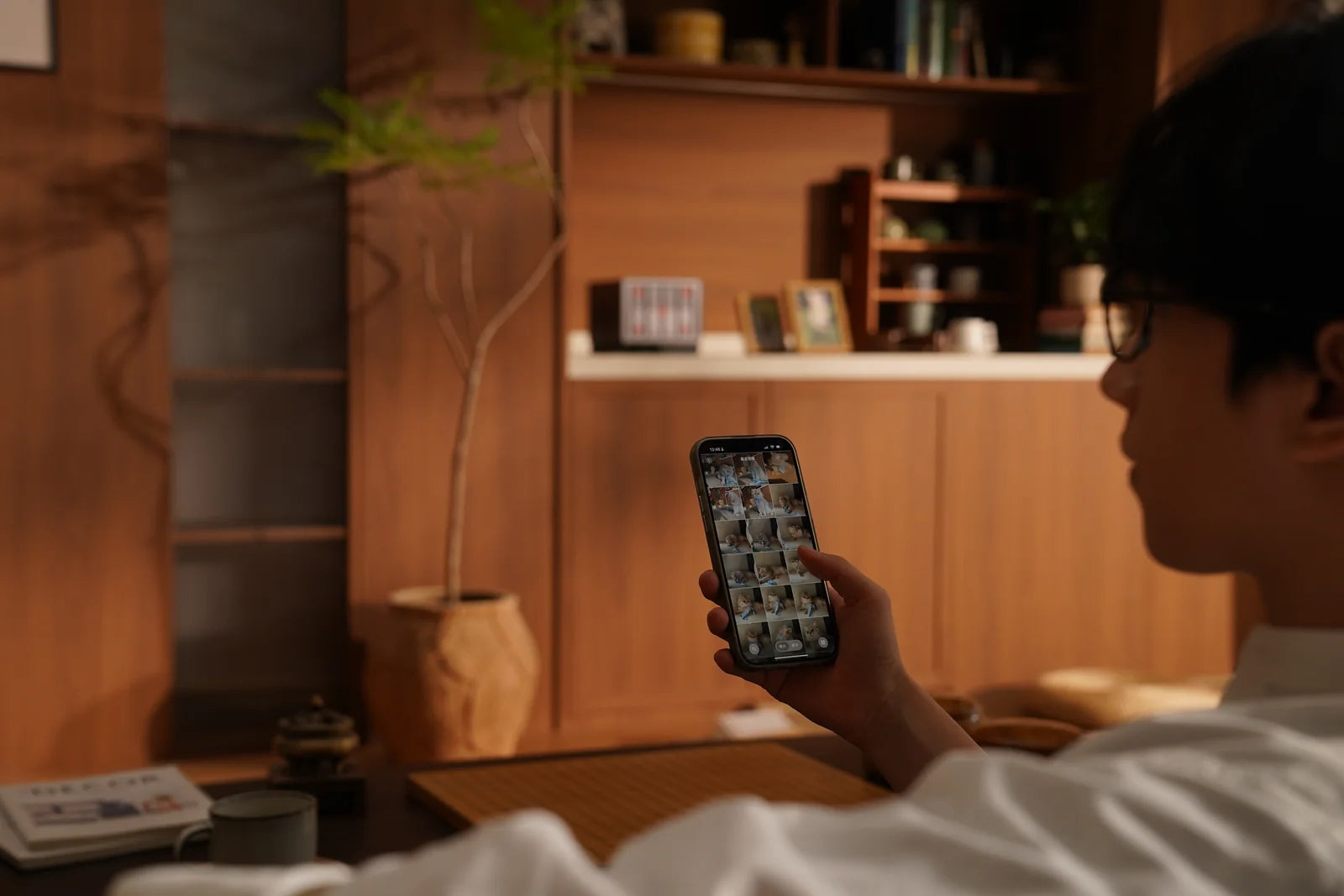
Trips, family clips and daily recordings can fill a phone quickly. The first step is preserving the files you would want back. A social media upload, a chat attachment or a lower-resolution preview may not contain the original video, audio or metadata.
Choose a transfer method supported by your phone, operating system and photo-library settings. If the phone keeps smaller, optimized copies, download the full originals from your cloud library first. Keep any companion files needed for Live Photos or motion photos.
| Starting point | Transfer method | What to check |
|---|---|---|
| iPhone with originals available | Import via USB or export the original files to a computer using Apple’s instructions, then copy them to your archive. | Export settings, file sizes and formats, and whether the transferred videos play on your computer. |
| Android phone | Transfer the original files to a computer via USB or another method supported by your phone manufacturer. | USB mode, camera and app folders, device permissions and any conversion during export. |
| Cloud-managed library | Download or export full originals with the provider’s supported method. | Whether downloads contain full originals and companion files, and whether deletions sync to other devices. |
This guide uses a computer to transfer videos before copying them to the NAS. If you want direct phone transfers or automatic camera-roll backups, check current phone and app compatibility with Zettlab before buying.
Test a small batch before moving your whole video library
-
Choose a representative sample
Include a short clip, a long clip, high-frame-rate footage and any HDR or unusual format you use. Note file count and total size. Copy them into a dated import folder, leaving the phone originals intact.
-
Check image, audio and dates
Play the start, middle and end on the computer. Confirm audio, duration, orientation and important dates. If HDR footage looks different, check whether your player and display support it before converting or deleting the original. Use checksums for byte-for-byte comparison when your tools support them.
-
Recover from the backup
Make a backup on separate storage, then restore a few files to a new folder. Play the restored videos and check the picture and sound.
Give everyday videos a simple home
Start with a structure such as Videos/2026/2026-11-Trip/Originals. Store edited versions in Edits and sharing copies in Exports. Record where each import came from so that overlapping exports do not become confusing duplicates.
Decide who can see family clips. Use individual accounts and appropriate permissions for shared storage; avoid one shared administrator password. Keep sensitive videos in a separate folder with access limited to the people who need it.
Keep copies on separate storage and offsite
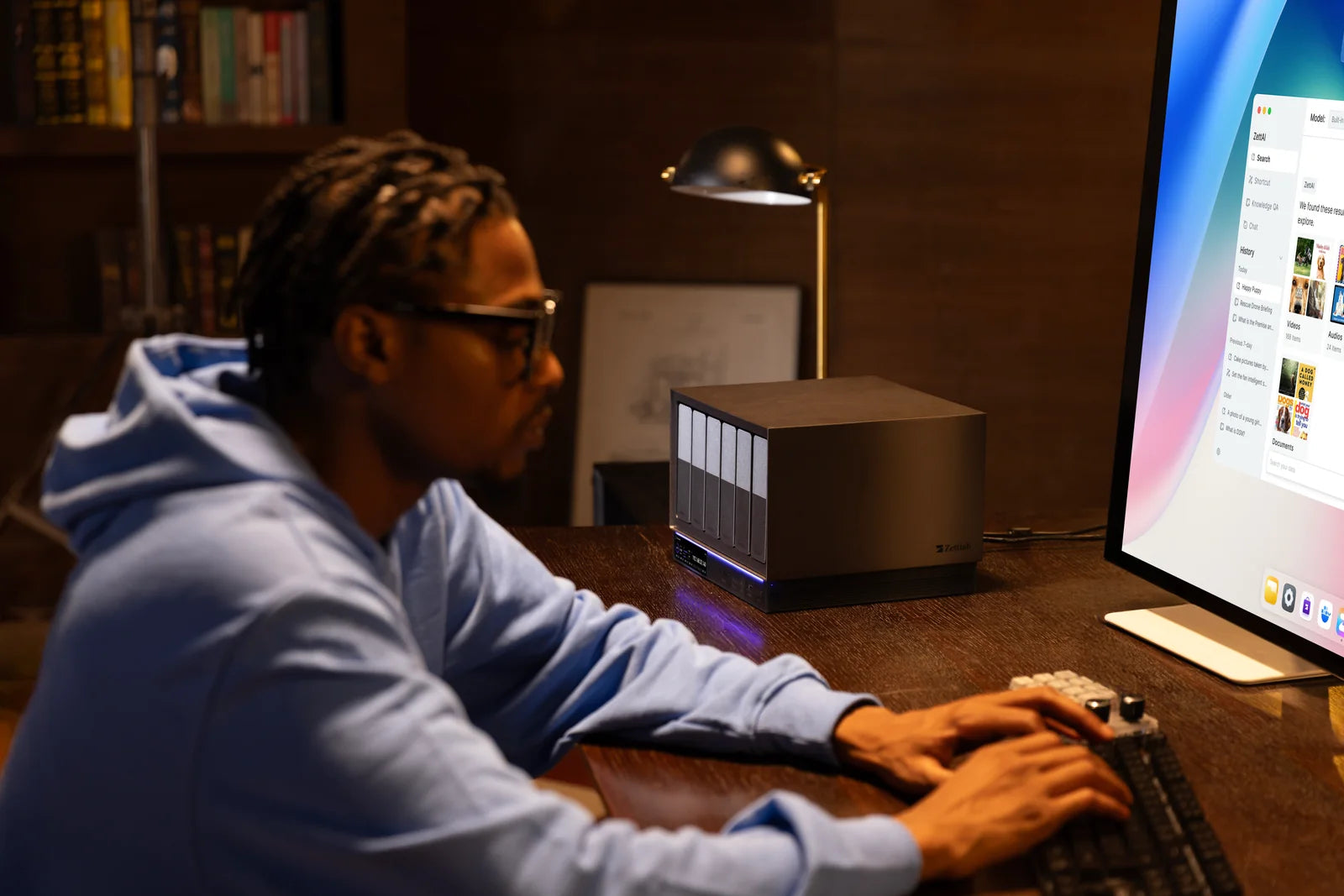
Keep an independent backup and an offsite copy for irreplaceable files. Sync can propagate deletions, so check version history, retention and recovery behavior. Multiple disks inside one enclosure do not equal independent backups. Read the 3-2-1 guide before relying on a new arrangement.
Before deleting anything from the phone
- Full originals have been exported, including important companion files.
- File counts and sizes match the source, and sample clips play with sound.
- An independent copy and an offsite copy exist for irreplaceable clips.
- A sample restore has succeeded.
- You understand whether deletion will sync to other devices or the cloud.
- You know how long the phone and cloud keep recently deleted items.
Delete videos from your phone only after completing these checks. If any check fails, keep the originals until you have fixed the problem.
Where a Zettlab archive fits
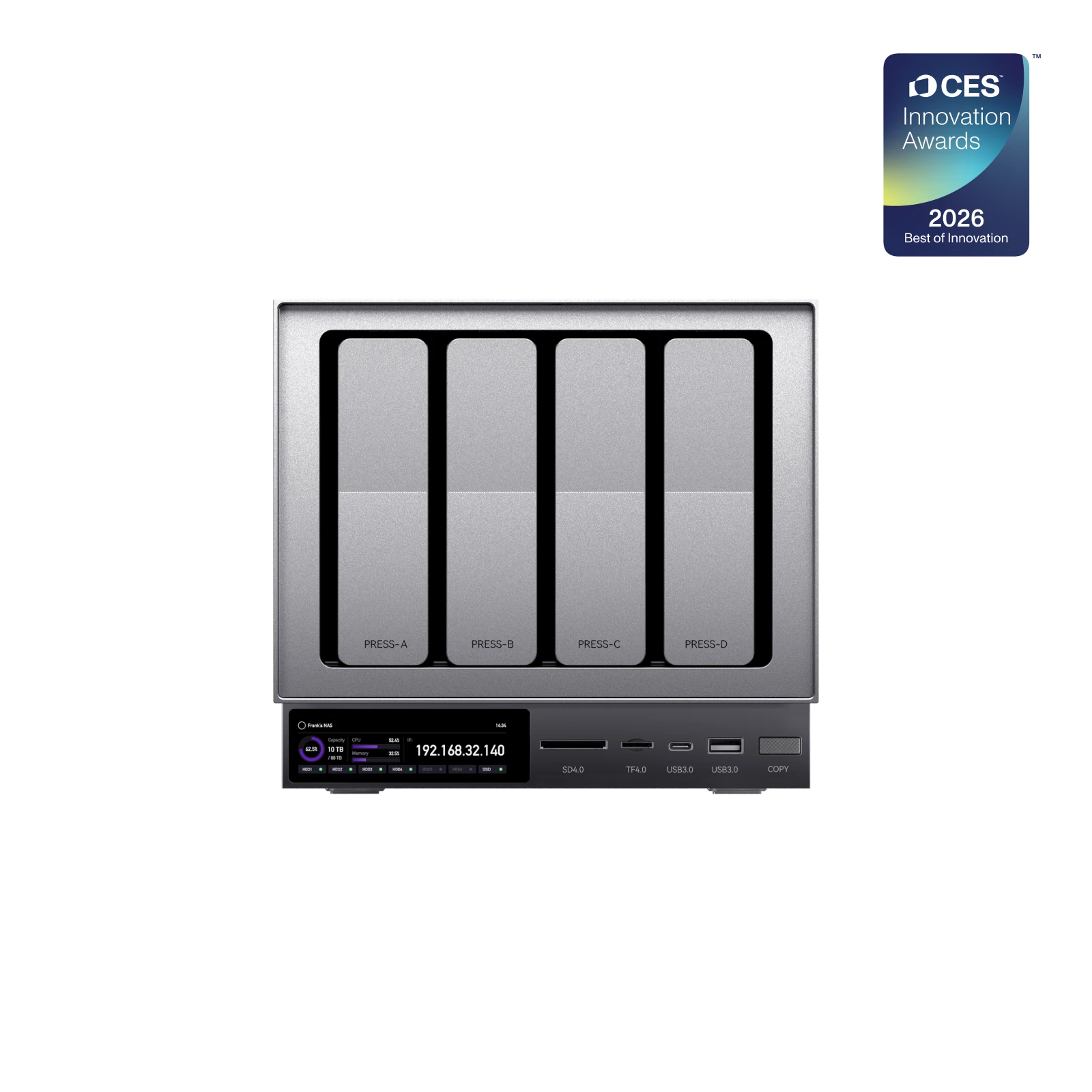
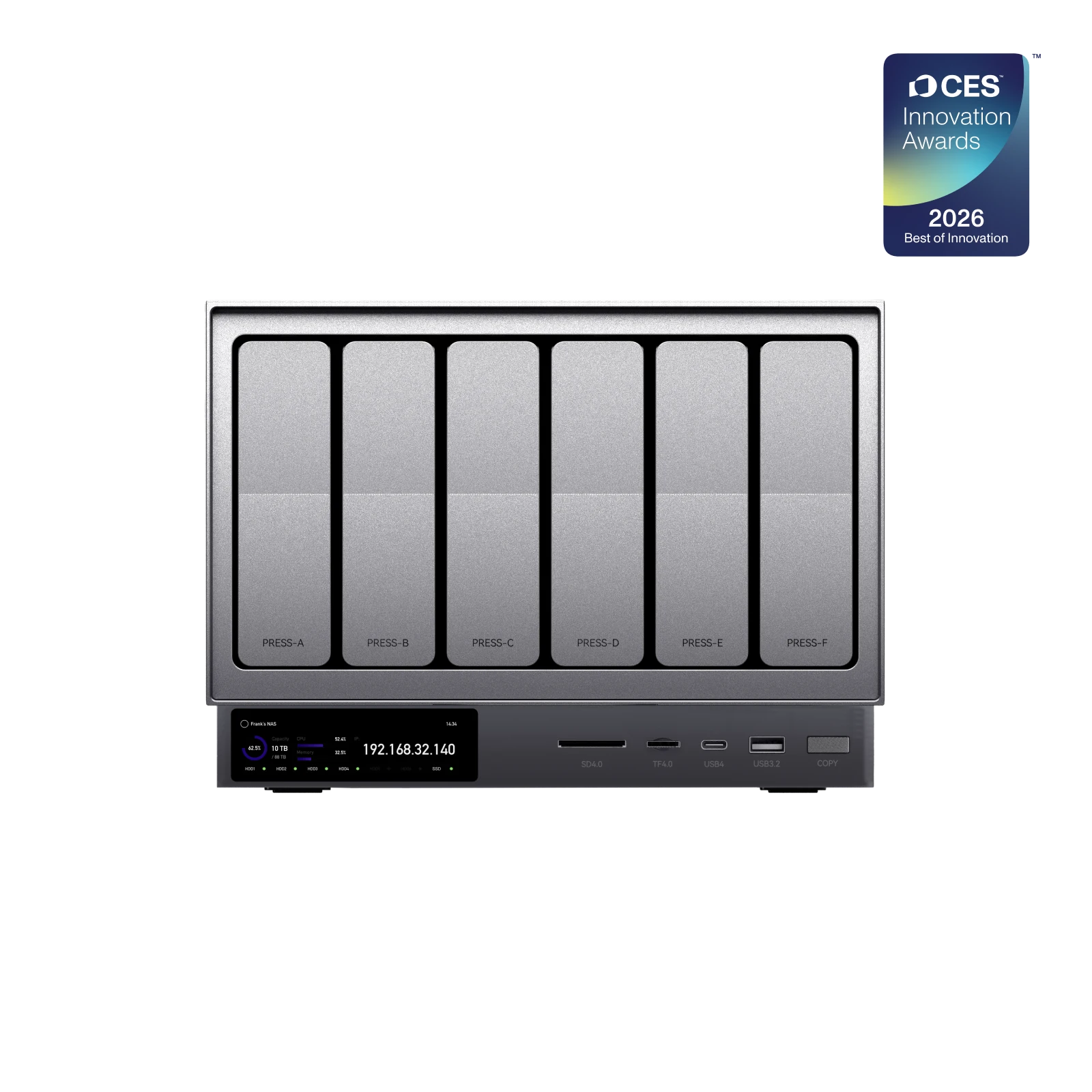
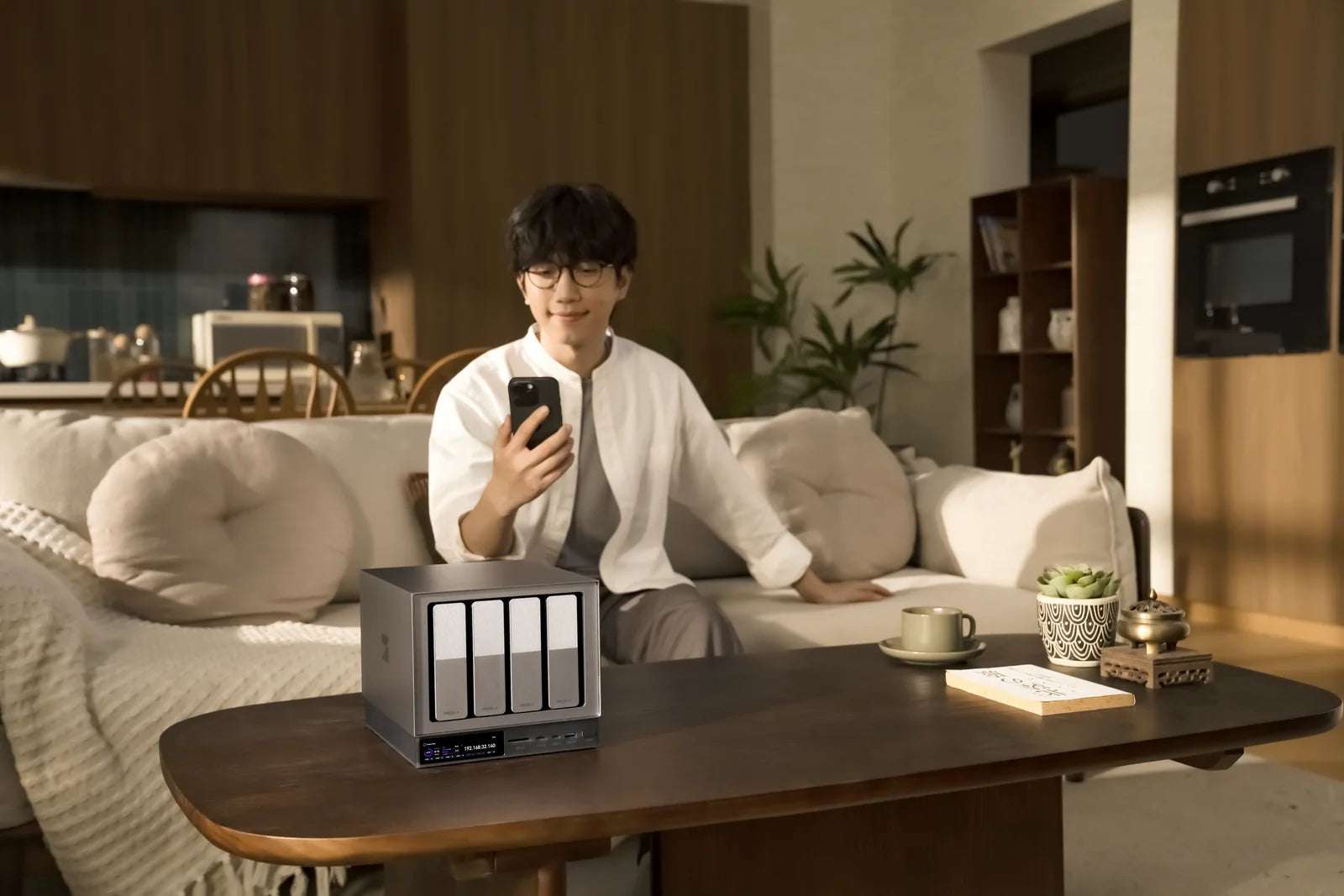
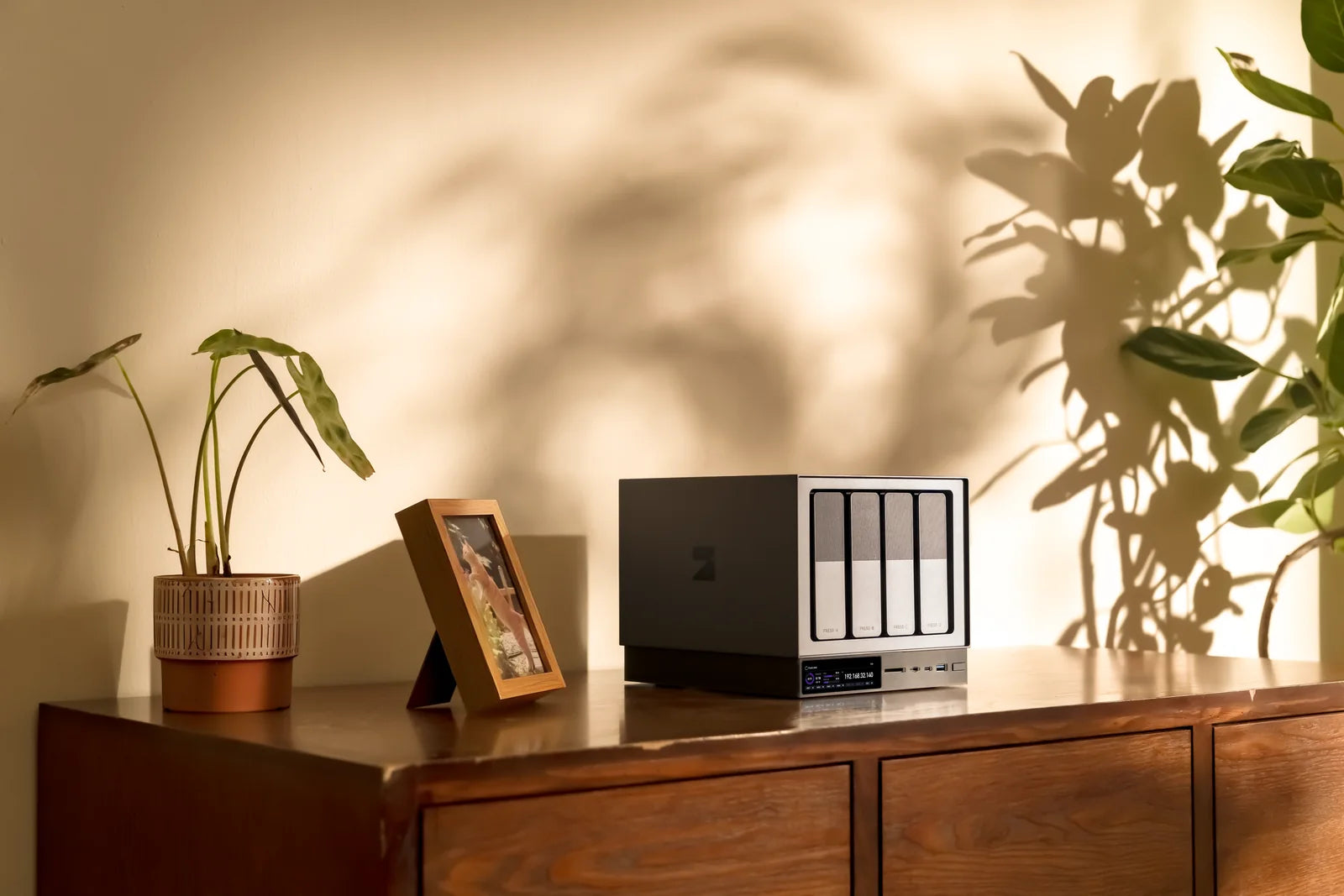
D4 and D6 are four- and six-bay NAS enclosures with 8GB or 16GB RAM options, 2.5GbE networking and local AI search. Drives are sold separately. After transferring your videos through a computer, you can copy them to the NAS for storage on your home network. Budget for compatible drives, backup storage, updates and power. A small library may be easier to manage with your current cloud plan and an independent export; compare NAS and cloud tradeoffs before buying.
For import instructions, use Apple’s photo and video transfer guidance or Google’s Android USB transfer guidance for supported transfer methods. Follow the current instructions for your device and computer.
Prepare the destination before a large transfer
Complete the first boot and login guide and check model-specific hardware compatibility notes. Copy a small test folder first and confirm the intended account can read it back. Keep phone and computer copies while verifying independent local and offsite recovery copies.
Historical cloud exports have separate instructions for iCloud and Google Photos. For ongoing use, start with the family photo library plan. These do not establish phone background uploads or isolated cloud deletion.
AI is optional: check enablement and learning requirements. A video can be stored and played without its codec being supported for AI parsing.
Product details and sources
Product details are based on the D4/D6 product page and hardware specifications reviewed 4 November 2026. Copy reviewed 12 November 2026. No independent hardware benchmark is reported. Confirm current configurations, compatibility, availability and purchase conditions on the official pages.
Frequently asked questions
Can I delete phone videos after copying them to one NAS?
A single NAS copy is one storage location. Verify the originals, keep independent local and offsite copies for irreplaceable videos, and test a restore before deleting the source.
Is syncing with iCloud or Google Photos the same as a separate backup?
Not always. Deletions may synchronize and retention varies. Check the service’s current behavior and maintain an independent recovery copy.
Can D4 or D6 automatically back up my phone videos?
This guide covers transferring videos to a computer, then copying them to the NAS. For automatic backups, ask Zettlab which phones and apps are currently supported before buying.
Backup & migration
3-2-1 Photo Backup: Plan and Test Your Copies
Read the guideBasics