
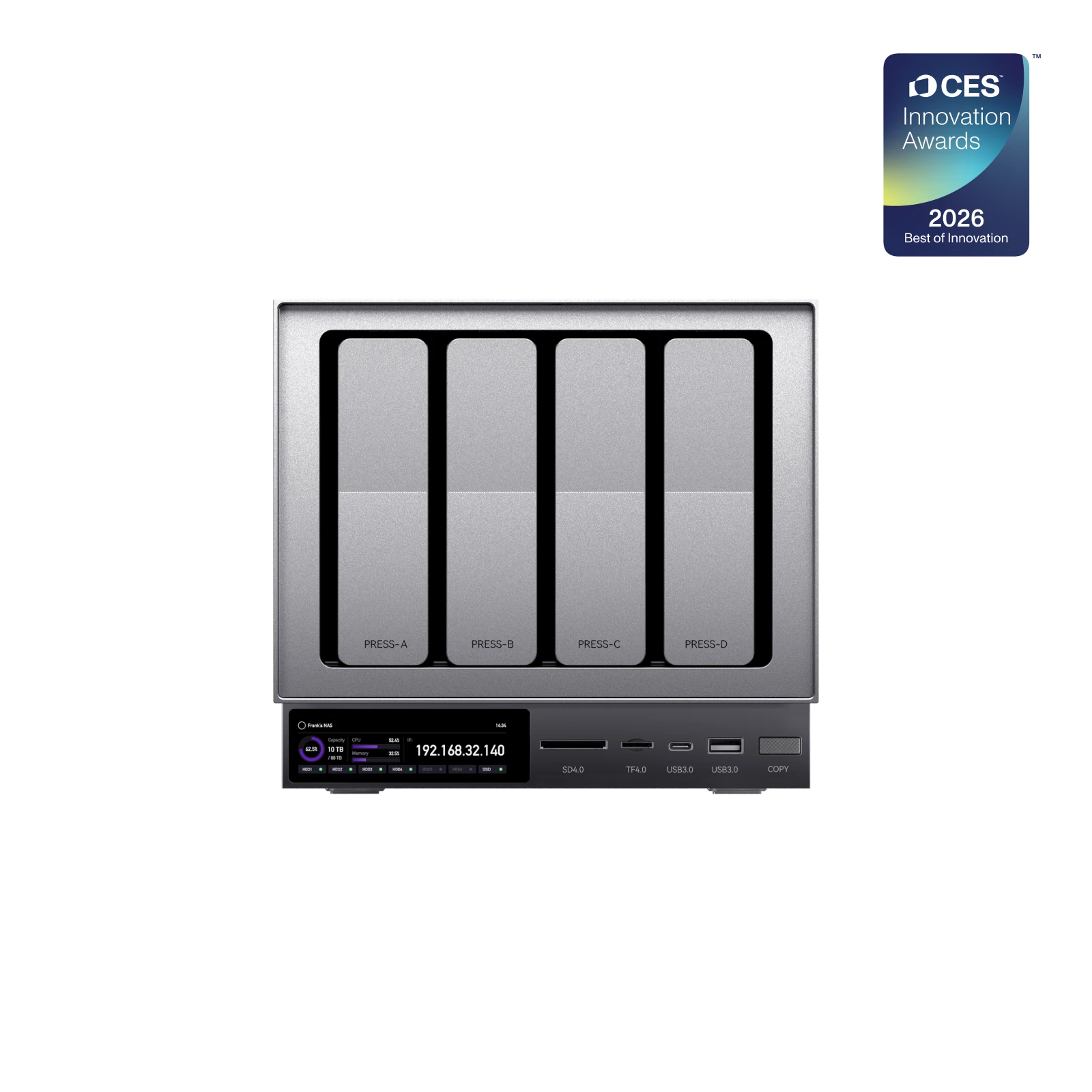
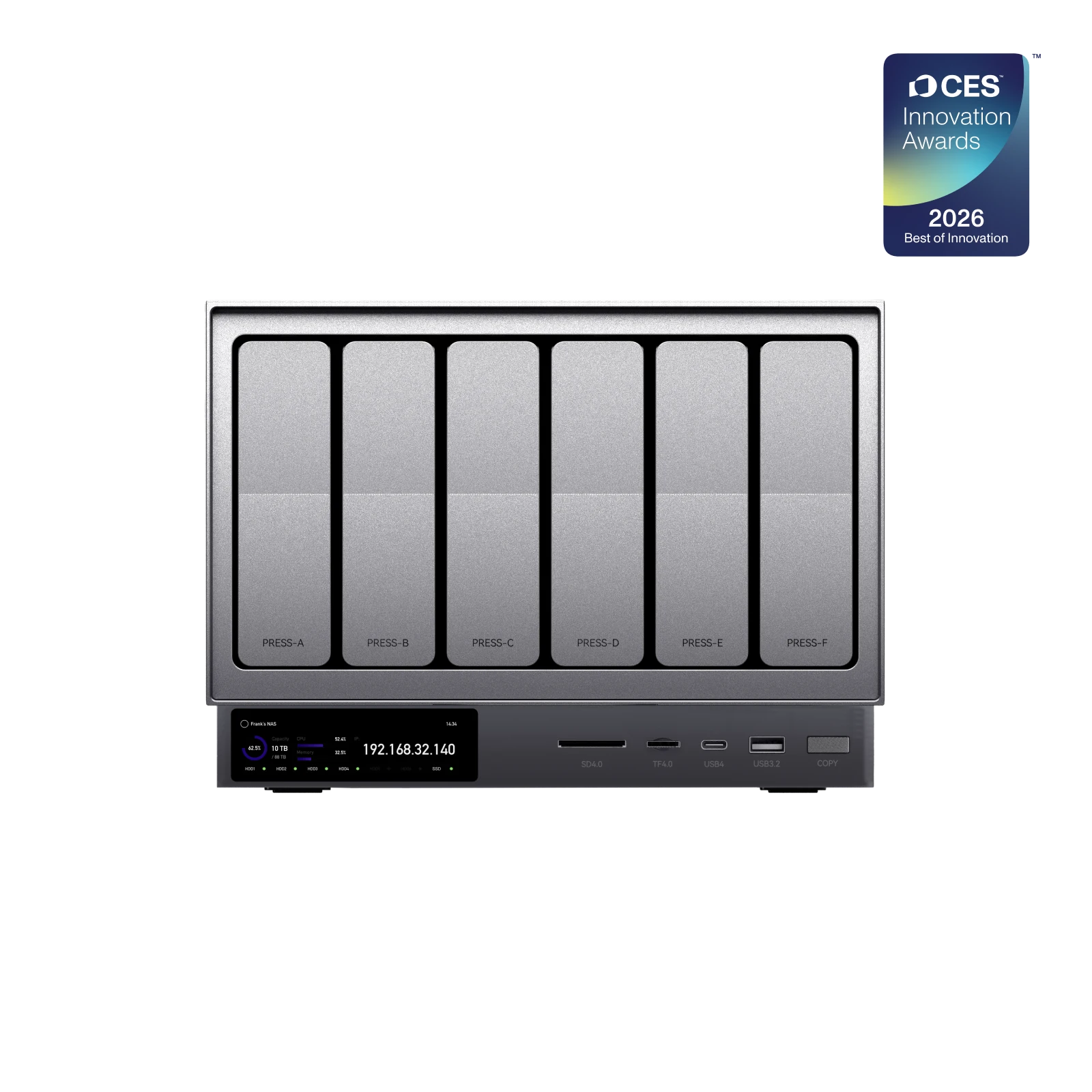

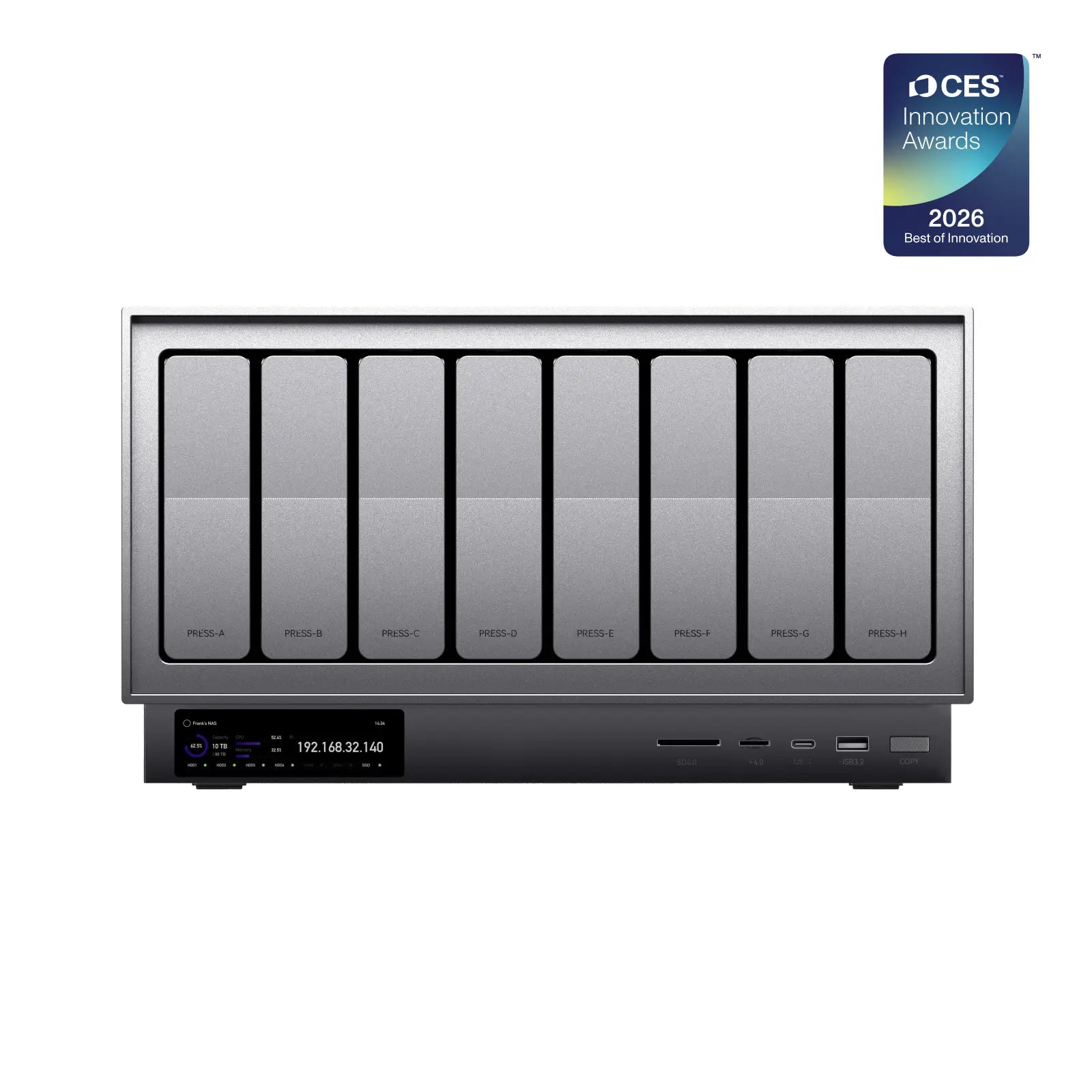

Give everyday office files a shared home
Begin with one project, two named accounts and a few disposable sample files. Decide who owns the working document, who reviews it and who approves delivery. Create a team folder and keep private personnel or finance material outside that shared workspace.
In ZettOS, an administrator assigns team spaces and shared-folder permissions. Use a normal account for daily work. Follow user and permission management and team-space preparation for the installed version.
- Editor: upload and revise a sample file in the project workspace.
- Reviewer: open the review copy; confirm that read-only access prevents changing it.
- Unassigned colleague: confirm that the private folder is unavailable.
First useful result: each person can perform their assigned task, and another account cannot reach a folder it should not see. Test with those accounts rather than judging permissions from the administrator view.
Connect Windows and Mac computers
For computers on the local network, enable SMB in Settings → File Services. Use the connection address displayed by ZettOS: Windows File Explorer accepts the NAS network address; macOS Finder uses Go → Connect to Server. Follow the official file-service instructions and sign in with the intended user.
Copy a small file, open it from a second computer and compare its contents. If access fails, check the address, connection and account permissions. Keep active editing on storage appropriate to the application. SMB access alone does not establish simultaneous editing, file locking or editing performance.
Make the next revision easy to find
Use a project folder that separates source material, working copies and approved deliveries. Record the owner and current revision in a short readme.
Client_Project/
  00_Readme/
  01_Source/
  02_Working/
  03_Review/
  04_Delivered/
Agree who edits each file. Use explicit names such as Proposal_2026-11-18_v03.docx. Before replacing a same-named file, use the Files prompt or create a copy. These named copies are a team convention, not a claim of automatic version history. For larger media projects, use the creator folder template.
Deliver an approved package to a client
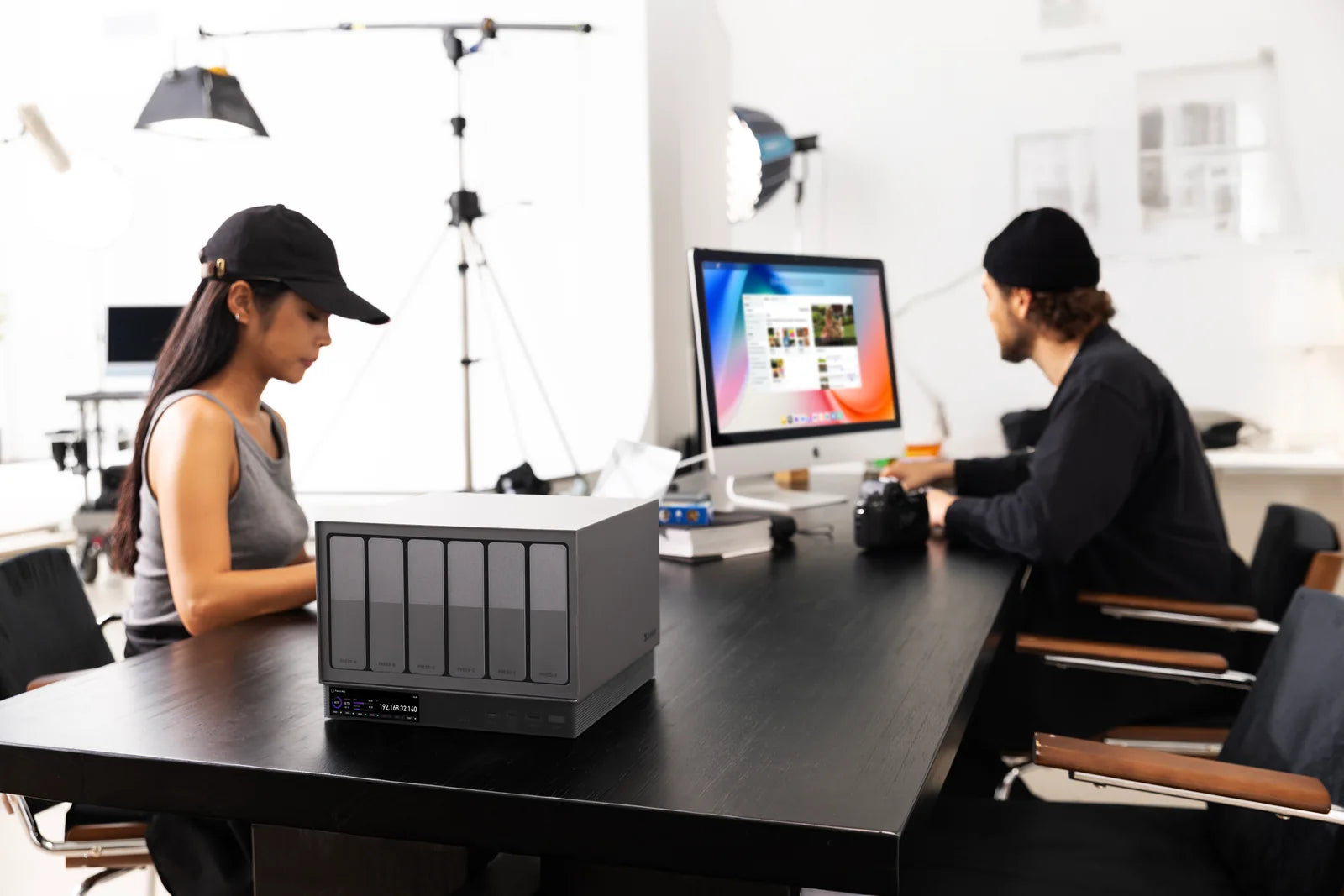
A creative agency needs a clear boundary between work in progress and what the client receives. Copy approved exports and a delivery note into 04_Delivered; include the agreed formats, revision and contact person. Keep editable sources separate unless they belong in the contract.
- Open the delivery files on another computer and check names, dimensions or duration against the brief.
- Choose a delivery method the recipient can actually access. ZettOS external shares require network reachability; they are not a guarantee of access from every connection.
- If using a share, follow the sharing instructions, set the available expiry and test the link and extraction code from the recipient’s connection.
- Record approval and the delivered revision. Stop the share when it is no longer needed.
First useful result: the recipient opens the intended package, while unrelated project material stays outside its sharing scope. If a link fails, check reachability, permissions and expiry, or use an agreed alternative delivery service.
Run an optional file service with its own access rules
If the team needs a separately maintained file portal, follow the Nextcloud guide to choose its host, database and persistent data. Its users and sharing rules are application settings; ZettOS shared-folder permissions do not automatically configure them.
Create two test users and a disposable project. Share only the intended folder with the recipient, open the shared files under that account, then try an unrelated folder and a write operation that should be denied. Test a delivery link from the recipient’s connection and revoke it when the handoff ends. Include application configuration and database in the recovery plan, alongside the files.
Test synchronization and recover a propagated mistake
Use the Syncthing guide to choose the participating hosts, exact folders and send/receive roles. Start with disposable files and keep a copy outside the synchronized folders.
- Change a sample on one computer and confirm the intended receiving computer gets it.
- Test a conflicting edit and inspect the conflict copies before choosing the revision to keep.
- Delete a sample and observe where the deletion propagates. Do not equate successful synchronization with a preserved historical copy.
- Configure any selected versioning deliberately and keep an independent backup. Restore a known older file to a separate location, inspect it, then choose how to return the accepted copy to the synchronized folder.
Expand only after users understand conflicts, deletion propagation and who handles recovery. Record disconnected-host behavior and check synchronization status before assuming a second computer has the latest complete copy.
Recover a mistake before it becomes a deadline
Assign an independent backup destination and a person responsible for checking it. With sample data, delete or replace a file, restore it to a separate folder and open it on the intended computer. Record where it came from and how long recovery took.
The Files recycle bin can help with eligible deletions; direct deletion or an emptied bin cannot be recovered there. Follow Files recovery guidance and keep an independent copy. RAID, shared folders and synchronized working copies do not replace a backup and restore plan.
Add a service when the workflow needs it
Consider Syncthing for selected computer-to-computer copies, or Nextcloud for a separately maintained file service. Read each guide’s host, architecture, storage and recovery conditions first. Neither listing establishes an installation on your NAS. Synchronization can propagate mistakes; test conflicts and recovery before involving client files.
Choose storage around the team’s files
Measure current project storage, expected growth and independent backup needs. Use the capacity calculator, then review D4/D6 hardware specifications and compatible drives. Team size alone does not choose the bay count or RAM. Compare models once the plan is clear. A photography-led team can start with the post-shoot archive workflow.
For Home
NAS Backup and Restore: Prove You Can Recover
Read the guide
Third-party apps