



There is more to a 30-second video than the final cut
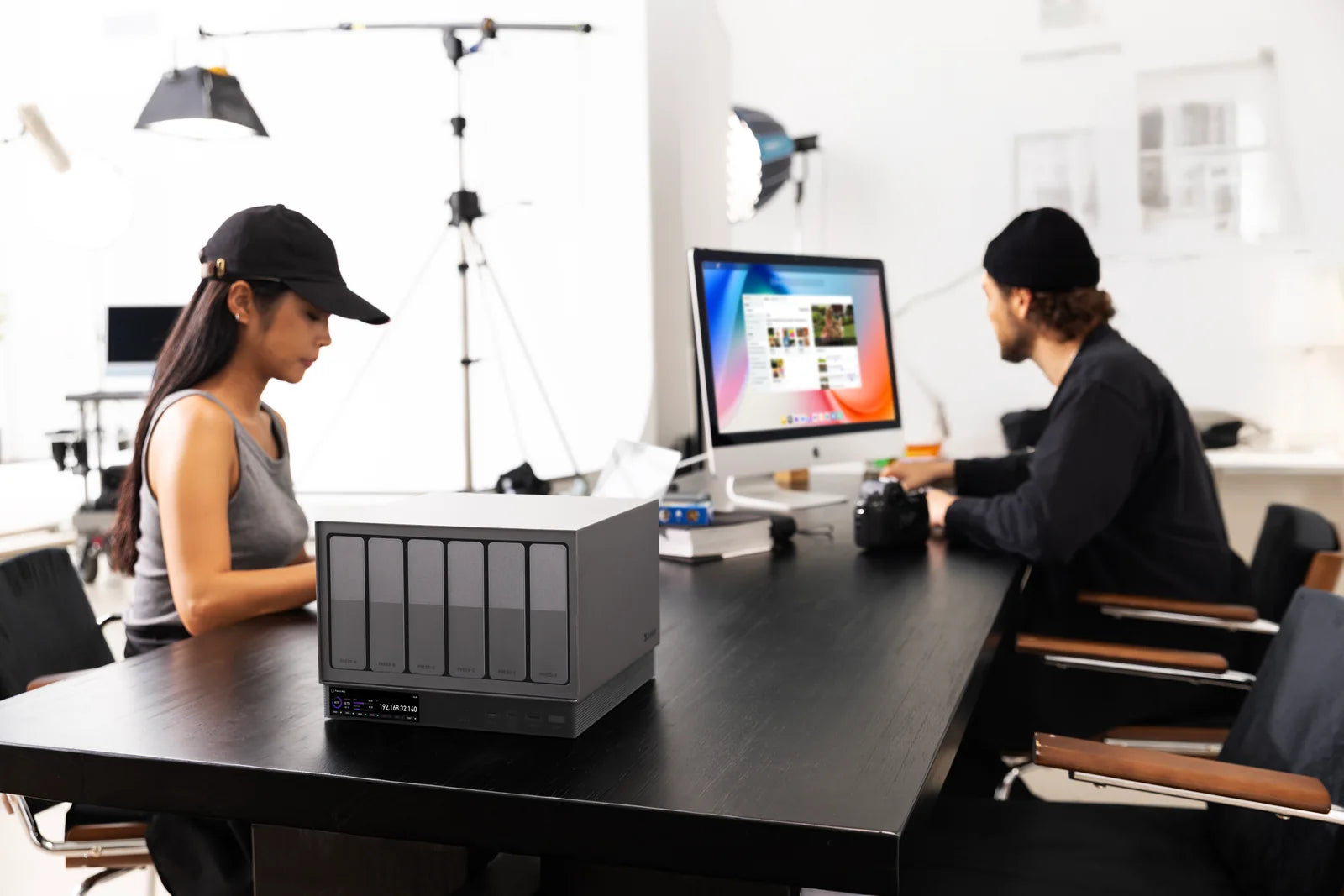
A finished clip is only part of a video project. You may also need the original footage, voiceovers, alternate openings, licensed music and earlier exports. Keeping those files together makes it easier to handle a client revision or reuse a shot in your next episode. A NAS gives you a central place to store completed projects.
Record on your phone or camera, edit on a suitable local drive, then move completed projects to an organized archive. A portable SSD may be enough for a small collection. A NAS becomes useful as your collection grows or when you need to access it from several devices.
-
Copy the originals and check the result
Transfer the original files using a method supported by your phone or camera. D4 and D6 support importing from compatible SD and microSD (TF) cards. For phone footage, follow the computer-based transfer guide. Compare file counts and sizes, then play a few clips to check the picture and sound. Keep the originals on your phone or memory card until you have verified the transfer and made a separate backup.
-
Edit locally and keep the project portable
Use a fast local SSD for editing if your software supports it. Save the project file, source media and any supporting files needed to reopen the edit. A project file may link to footage stored elsewhere, so copying that file alone can leave you with missing clips.
-
Archive, restore and reuse
Collect the source media, project file and approved master exports in one folder. Back it up to separate storage, then restore a sample project and open it before clearing your editing drive. Keep an offsite copy of footage you cannot reshoot.

A folder template for a recurring series
Use the same project name in your folders, briefs and exports. Create the folders below yourself and adapt them to your editing software.
2026-11-Brand-Series-Episode01/
   01_Originals/Phone-A/
   01_Originals/Camera-B/
   02_Audio/Voiceover/
   02_Audio/Music-and-Licenses/
   03_Project/Collected-Media/
   04_Exports/9x16-Master/
   04_Exports/Platform-Versions/
   05_Delivery/Approved/
   README-Rights-and-Restore.txt
In the README, note your editing software and version, required fonts and plugins, any missing media, and the date of your last restore test. Record release forms, music licenses and any limits on how long you can use client material. Keep a clean master export separate from versions with captions, stickers or watermarks. Social platforms may recompress uploads, so keep your original project and media too.
Estimate storage from a typical week of shooting
Measure how much footage, audio and project data you keep from a typical week. Use that to estimate a year of new files, then enter the annual total below. Include source footage and final masters: a short finished video can come from hours of recordings.
Archive storage calculator
Estimated storage = new files per year × years × 1.25, including a 25% buffer. Add space for your existing files, RAID redundancy and separate backups. Values use decimal terabytes (1 TB = 1,000 GB). The starting values are examples; replace them with your own estimates.
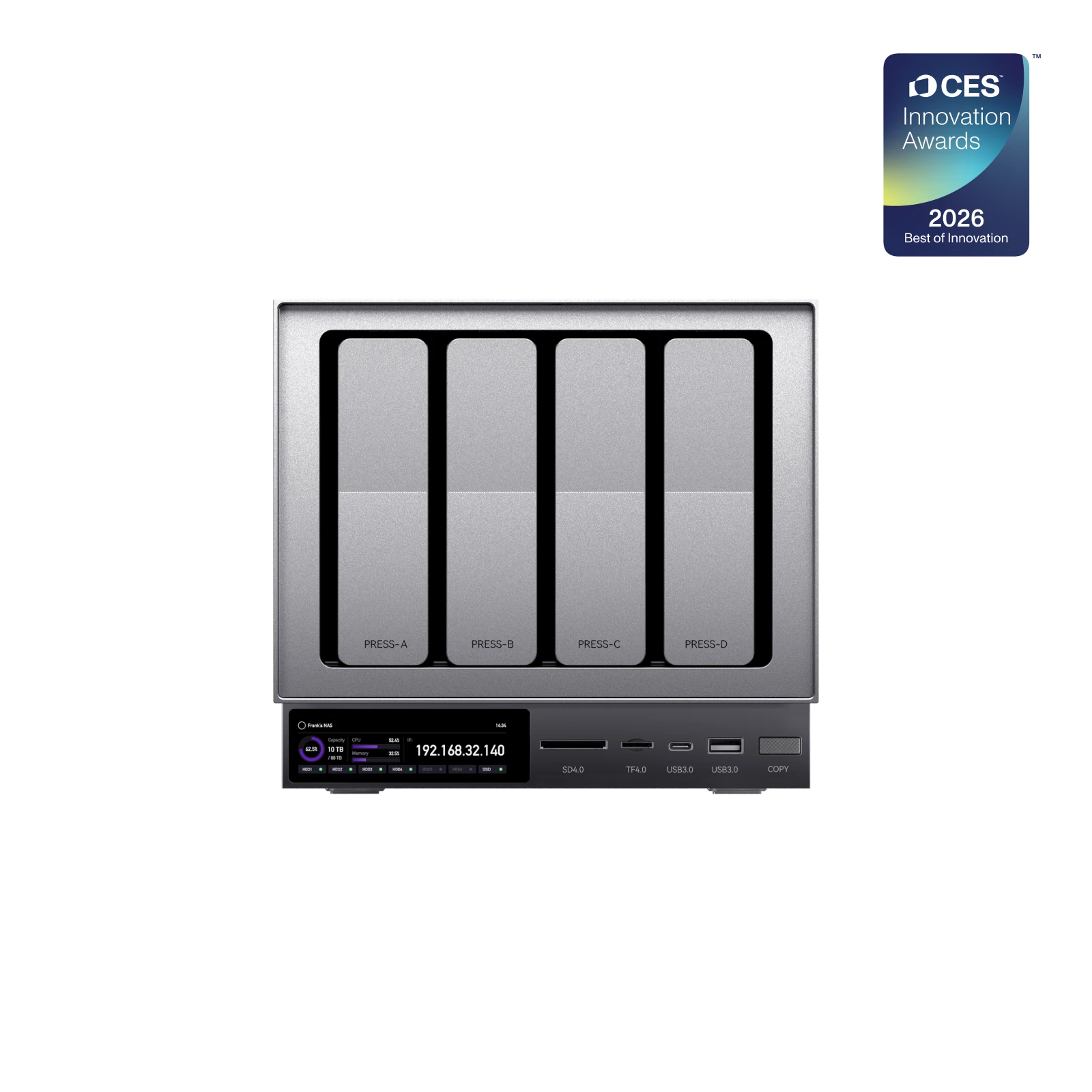
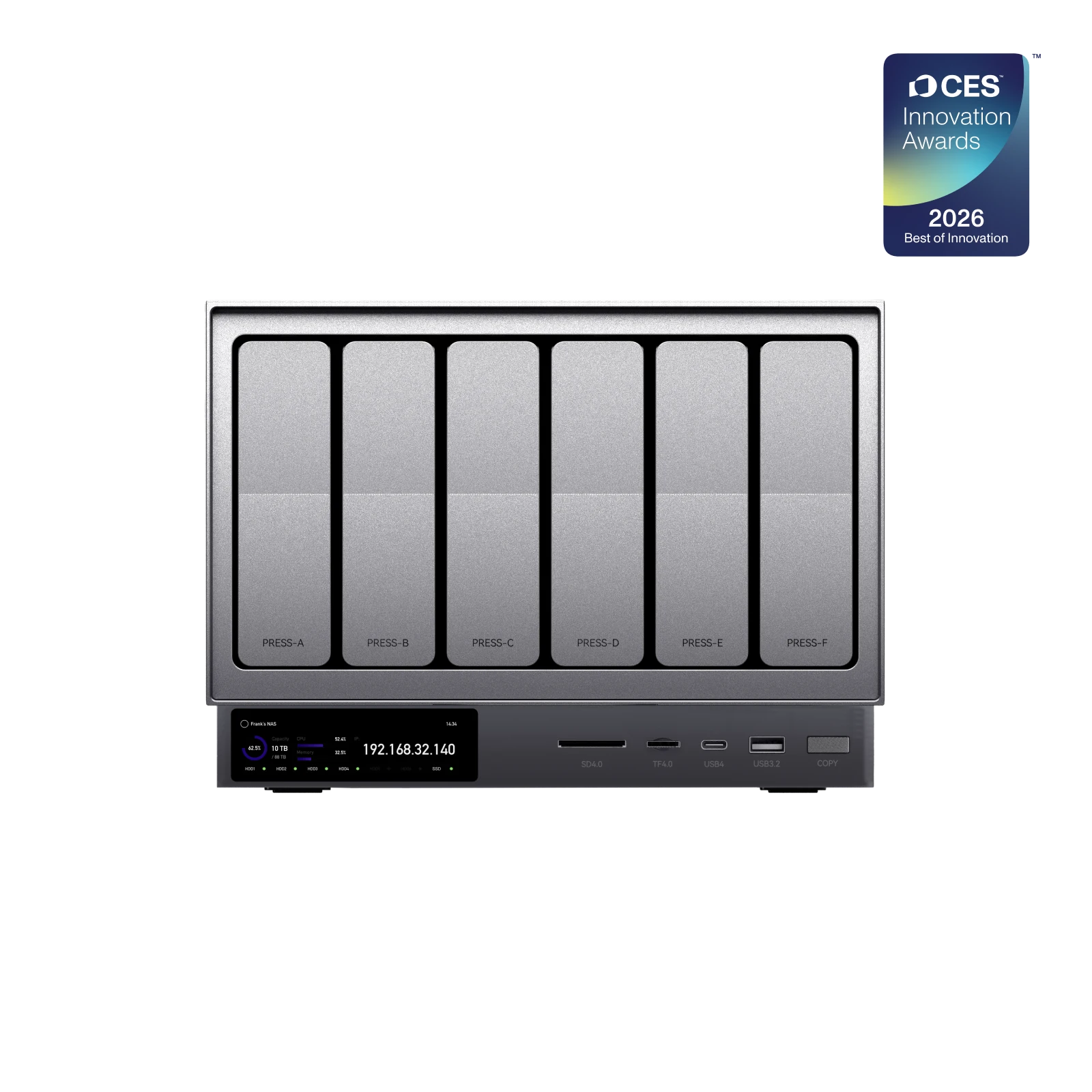
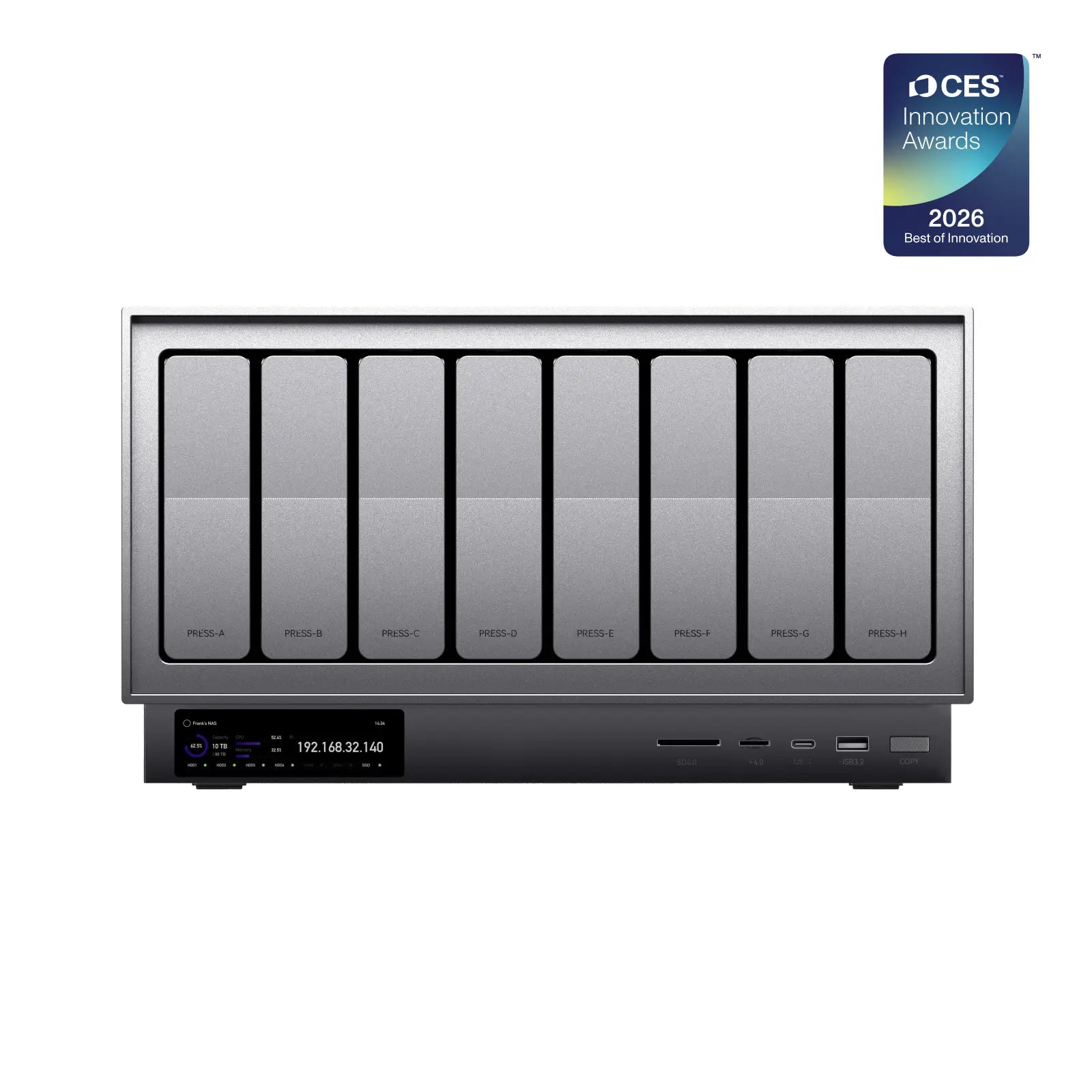
Once you have an estimate, compare D4 and D6. Usable storage depends on the compatible drives you choose and your RAID configuration. More bays give you more room for drives, but do not replace a backup plan.
How D4 and D6 fit into your editing setup
D4 has four SATA drive bays; D6 has six. Both offer 8GB or 16GB RAM configurations, 2.5GbE networking and local AI file search. Use search to help find footage, and keep clear filenames and a record of your projects. Track licenses and usage permissions in your project notes.
To edit directly from the NAS, check your editor’s network-storage support and test a typical project first. Performance depends on the codec, bitrate, drives, network and number of people using the NAS. Check the D4/D6 networking and hardware specifications, then use the Zettlab support contact to confirm any app integration or shared-project support you need for CapCut, Premiere Pro or DaVinci Resolve.
Before you archive a finished project
- Original clips play with sound, and the archived project opens without missing media.
- The approved master and each platform export have clear filenames.
- Music licenses and client permissions are stored with the project.
- Irreplaceable files have a separate local backup and an offsite copy.
- You have restored a sample project to another folder or device and opened it.
- Someone is responsible for software updates, access permissions and deciding how long to keep files.
Use the 3-2-1 backup guide to plan where to keep each copy. RAID inside one NAS does not replace separate backups.
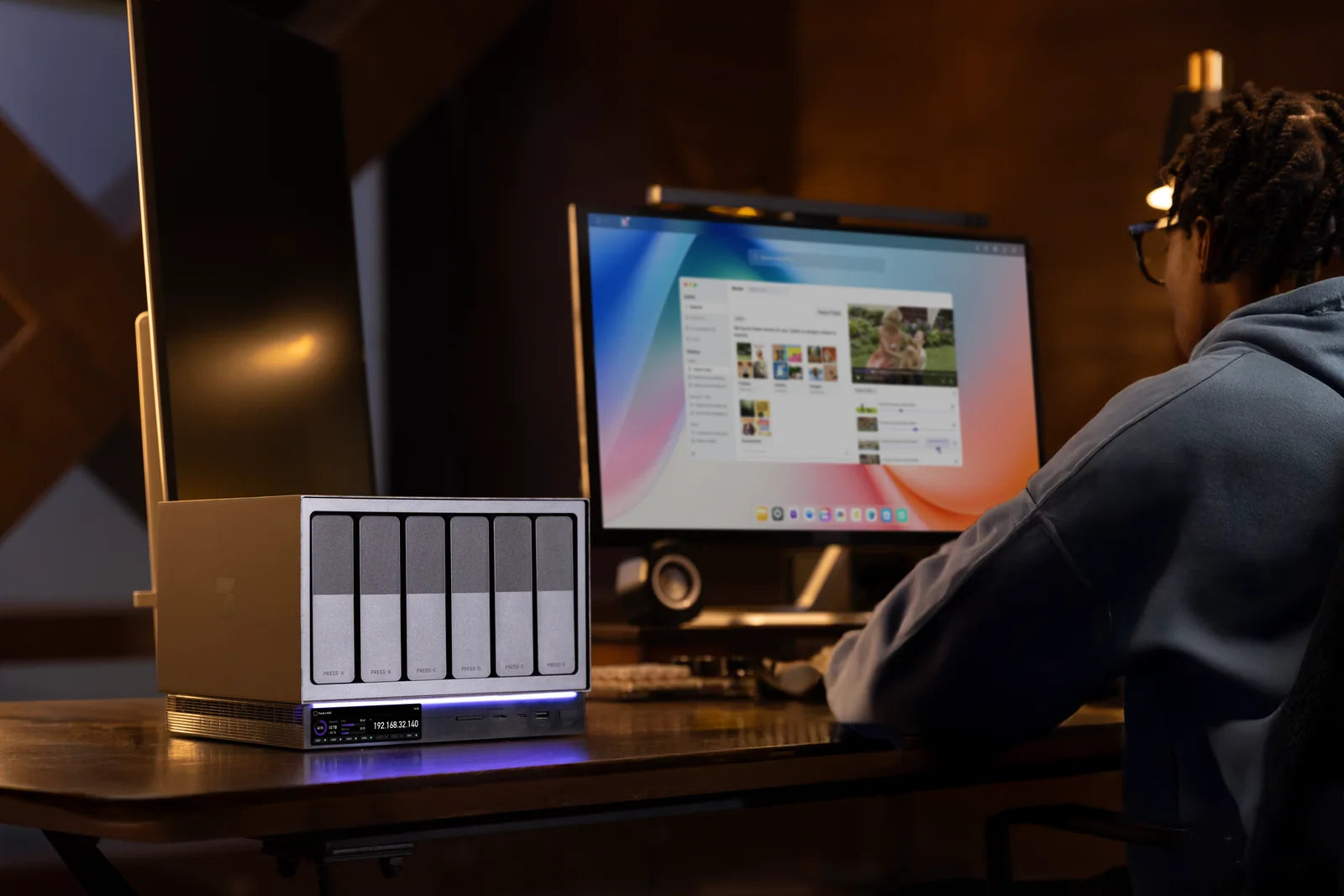
Search starts with a prepared library
Before relying on AI search, enable and configure ZettAI and include the intended folders in the learning scope, supported formats and task status. Wait for the relevant learning task to finish, then check a representative sample. Keep filenames and metadata useful when an item is excluded or cannot be processed.
Storing an original RAW, video or document file is different from successfully parsing it for AI. Supported extensions do not guarantee every codec, camera variant, encrypted or damaged file will work. The standard D4/D6 model table described AI Q&A as using PC computing power; do not confuse that with the Ultra family’s separate local-LLM positioning. Search and Q&A have different requirements.
Make one project the acceptance test
Prepare storage with the first boot and login guide and choose drives against model-specific hardware compatibility notes. Collect one completed project using your editor’s media-management method. Restore into a different folder or device, relink if necessary, and reopen the edit. Note the application version, plugins and failures.
These are proposed checks, not a completed benchmark. NAS Apps covers synchronization candidates; read Docker and persistence basics before relying on containers. Syncing between computers also requires conflict and deletion recovery.
Product details and sources
Product details are based on the D4/D6 product page and hardware specifications reviewed 4 November 2026. Copy reviewed 12 November 2026. No independent hardware benchmark is reported. Confirm current configurations, compatibility, availability and purchase conditions on the official pages.
Frequently asked questions
Can I use this workflow for TikTok, Reels and YouTube Shorts?
Yes. The folder structure works for projects made for any of these platforms. Keep your source footage, project files and final exports in separate folders. Upload and publish through the tools you already use.
Can I edit a CapCut or Resolve project directly on D4/D6?
Check whether your editor supports network storage, then test it with your own footage and network. You can start by editing on a local SSD and archiving completed projects on the NAS. Confirm any required app integration before buying.
Will local AI automatically organize all my B-roll?
Use local AI search to help find supported files. Keep your B-roll organized in clearly named folders, and record usage rights separately. Confirm any automatic sorting features you need with Zettlab.
Backup & migration
How to Back Up Phone Videos Before Deleting Originals
Read the guide
Backup & migration