


What you can do
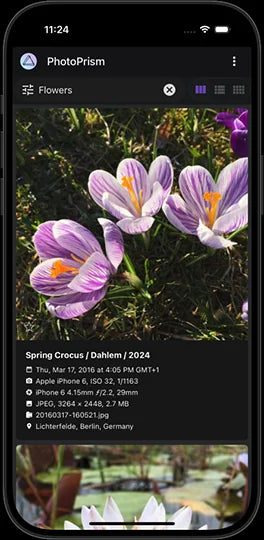
Add a browsing and search layer to an existing photo collection.
Index an existing photo archive in place so it can be browsed and searched, while keeping the original folder archive and application index separately recoverable.
This is a third-party project, with its own host, release, maintenance and license conditions. Its features are separate from ZettOS native software.
App Center availability and installation route
Checked on 18 November 2026: Zettlab D6 · RK3588 · 16GB RAM · ZettOS 1.14.0. The complete App Center list showed 49 entries. This observation applies to that device and catalog snapshot.
Available in the checked App Center. The displayed tag and port describe the store package. They do not establish a running version or a tested connection.
- App Center
- Listed
- Observed package state
- Enable action shown; package not enabled
- Displayed version / tag
- 231011
- Displayed service port
- 2342
Use the App Center package
- Open App Center and select the exact application. Review that package’s release, resource requirements, service port and data location before installation or enablement.
- Use the package action only after checking storage, permissions and the application’s instructions. Open it through the actual service address shown by your device; do not substitute an upstream default port.
- Complete the first useful task and a separate recovery trial before relying on the service. These actions were not performed during the read-only catalog check.
The reference host, diagram and setup steps that follow describe a separate upstream route. Do not paste its Compose configuration, paths or environment variables into an App Center package. Some displayed packages are older than current upstream instructions; match the package release before applying version-specific steps.
Installation, application operation, hardware acceleration and recovery on this NAS remain untested.
Choose the host and data paths
- Guide arrangement
- ZettOS Docker Projects (conditional)
- NAS role
- May host a compatible container and its supported local data paths after checking the exact image, runtime and resource requirements; use the stated external-host alternative when needed.
- Host requirements
- PhotoPrism publishes an ARM64 Compose example. Use it only after checking the selected release’s memory, host and database requirements. Keep storage/database on reliable local storage; use an external Linux host if that cannot be met on the NAS.
- Device validation
- App Center listing checked; installation untested. Installation, hardware acceleration and recovery on a Zettlab device have not been tested.

Conditionally supported application host
Application-specific persistent data
Consistent state + independent backup
App Center lists this application on the checked D6 / ZettOS 1.14.0. Use App Center for that package; the reference arrangement below follows upstream documentation and is a separate route. Installation, operation and recovery were not tested.
For a separate supported project, ZettOS documents Docker → Projects → + Create and YAML paste/import. Manage App Center installations in App Center. Match the exact image, data paths, permissions and ports before deployment.
Before you start
- Make a small copy of an existing photo folder; decide whether this first library is read-only or permits imports and edits.
- Prepare separate originals, storage and database directories on reliable storage. Current general requirements are at least 2 CPU cores and 3GB physical memory; the Raspberry Pi guide recommends at least 4GB RAM. Both additionally call for at least 4GB swap, with more resources for large RAW/panorama jobs. Verify what the NAS vendor supports; use another host if these requirements cannot be met.
- Download the official ARM64 compose.yaml and replace sample paths and passwords.
Set up and use the reference arrangement
-
Separate archive and index
Map the test archive to /photoprism/originals and a writable persistent directory to /photoprism/storage. Keep the configured MariaDB data on local reliable storage; a shared network folder is unsuitable for the database. Keep storage outside originals (unless it is a deliberately hidden directory); never put an import queue inside originals. For the read-only test set PHOTOPRISM_READONLY=true and optionally mount originals with :ro.
-
Create the project
ZettOS documents Docker > Projects > + Create: enter a project name and save path, paste Compose YAML or use Import, then Deploy. Open the project to inspect Containers and Logs. Projects originally installed through App Center must be managed there. Use the official ARM64 example as the starting point, set PHOTOPRISM_ADMIN_PASSWORD, map an unused host port to 2342 and inspect the database and application logs. PHOTOPRISM_ADMIN_PASSWORD sets the initial password only; changing that variable later does not reset an existing account.
-
Index the existing files
Open http://NAS-IP:chosen-port, sign in as admin with your configured password and use Library > Index > Start for the existing originals. Import is a different operation that copies/organizes files; do not use it blindly on the only archive.
-
Inspect the catalog
Check several RAW/JPEG/video samples, their dates and thumbnails. Compare the indexed files against the original folder and test whether the desired search task works.
Check the first useful result
Keep the complete application state
- The originals directory, including sidecars you need to retain.
- The storage directory: configuration, thumbnails, sidecars and SQLite if used.
- A MariaDB/index-database dump, Compose file and protected credentials.
Back up and bring it back
- Run the documented PhotoPrism database backup command before copying originals and storage; keep the result outside the active library.
- Restore originals, storage and the database into a release-compatible test project, preserving paths and permissions.
- Check known indexed photographs, albums/settings and original-file access before resuming imports.
Check limits and ongoing work
- Indexing can consume memory and CPU; start with a sample and observe actual load.
- Do not store the database on an unreliable removable device or shared network folder.
- Public mode disables authentication; it is not the household-private default.
Review release notes before updating. Keep the matching configuration and a consistent pre-update recovery set; a database migration may require restoring data with the matching software rather than simply using an older image.
Confirm the project’s current license and the exact free or paid feature boundaries for your intended task. Self-hosting does not make external APIs, cloud destinations or separate compute free.
Choose your NAS configuration
Choose drive bays for the archive and growth. Choose memory only after allowing for ZettOS, this application, databases and concurrently running services; 8GB/16GB are configuration choices, not tested application recommendations.
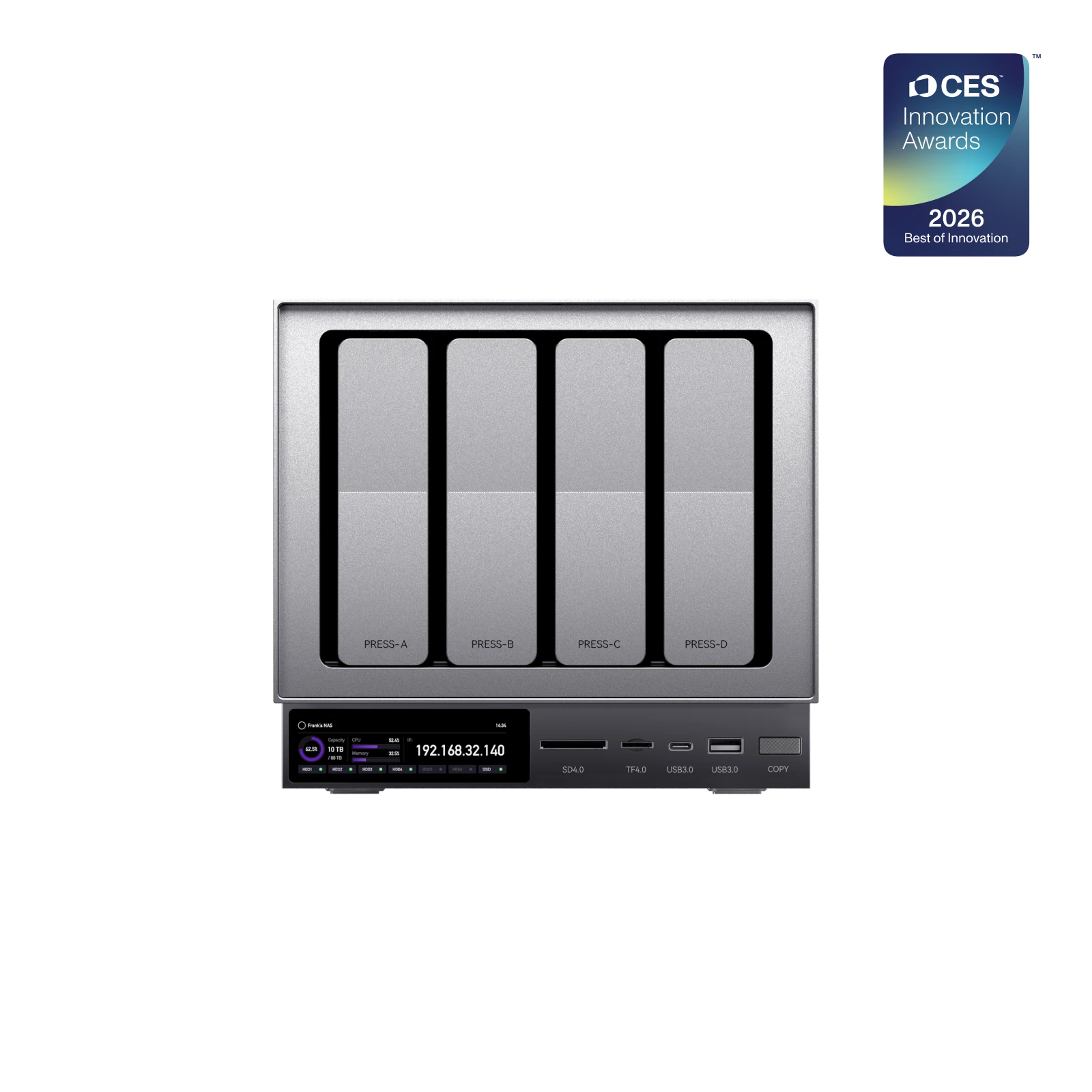
- D4 · 4 SATA bays
- Compare a four-drive layout against the current archive, expected growth and independent recovery copy. See the D4.
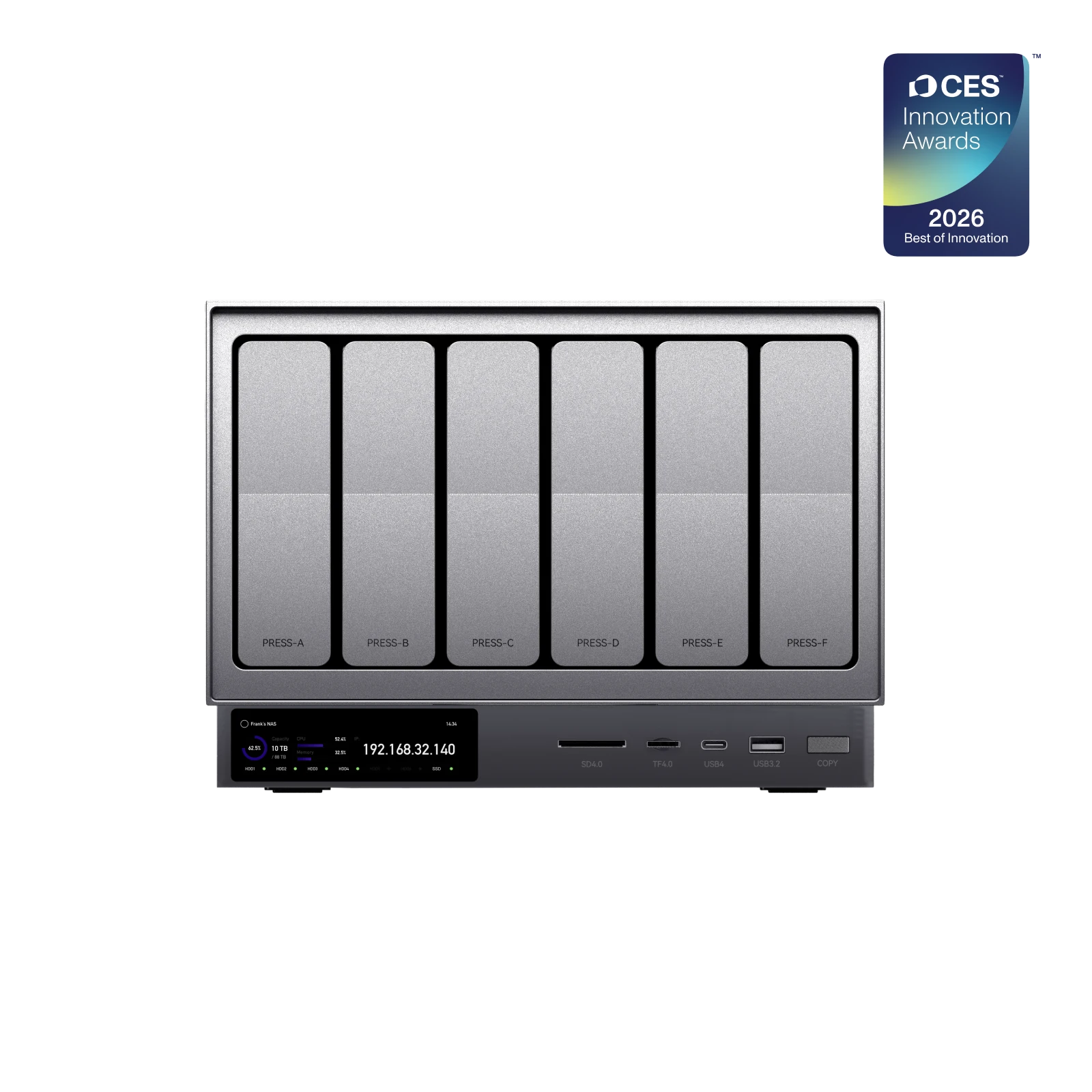
- D6 · 6 SATA bays
- Compare a six-drive layout when more drive-bay capacity or a different growth plan is useful. More bays do not establish a faster application or network. See the D6.
- 8GB / 16GB RAM
- These are separate SKU choices on each product page. Confirm the selected release’s requirements and combined operating load; no application-specific memory recommendation has been device-tested here.
- Complete system cost
- Enclosures are diskless. Allow for compatible drives, independent backup storage and any external application host, paid features or service/API charges required by the task. Current prices and delivery belong on the product page.
Official references
- PhotoPrism ARM64 Compose and path mappingDocumentation read 2026-11-18
- Indexing and importing a libraryDocumentation read 2026-11-18
- Originals, storage and index backupDocumentation read 2026-11-18
- ZettOS Compose projectsDocumentation read 2026-11-18
- Official current general requirementsDocumentation read 2026-11-18
- Official ARM64/Raspberry Pi requirementsDocumentation read 2026-11-18
- ZettOS App Center installation

For Home
Build a Family Photo Library That Lasts
Read the guide
Basics