


What you can do
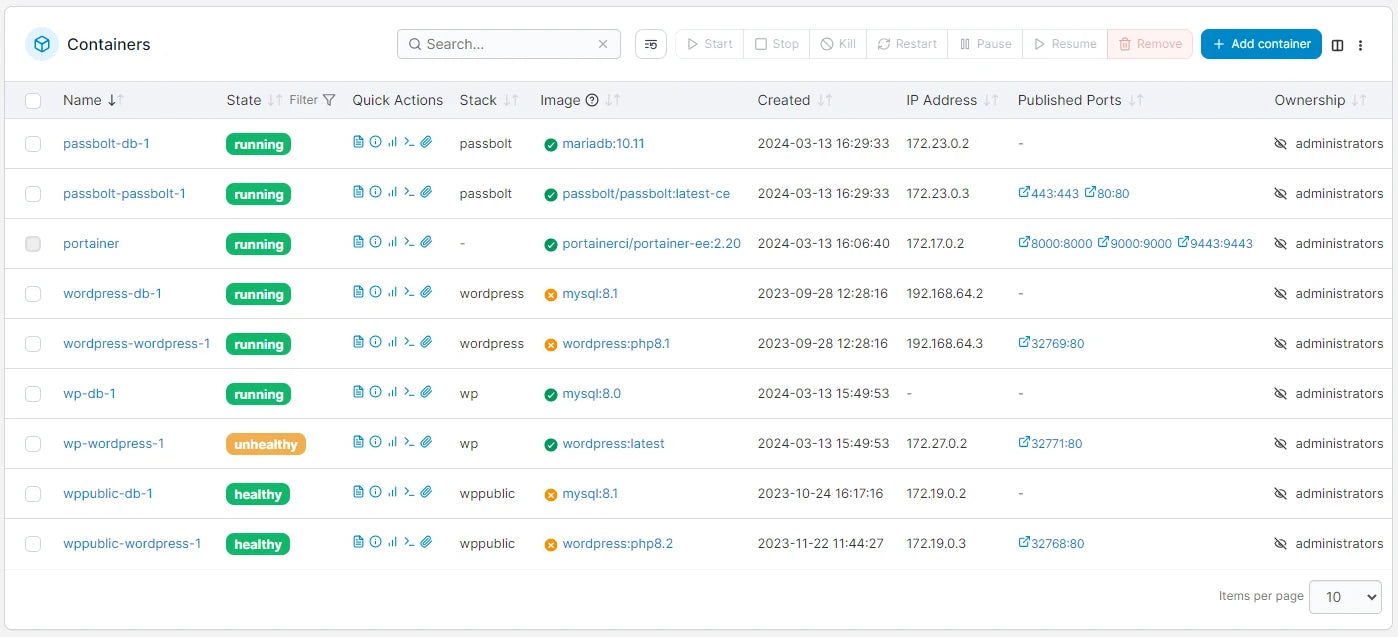
Manage an explicitly supported Docker environment from a web interface.
Manage a disposable container on an explicitly authorized Docker environment and learn the difference between management backup and application backup.
This is a third-party project, with its own host, release, maintenance and license conditions. Its features are separate from ZettOS native software.
App Center availability and installation route
Checked on 18 November 2026: Zettlab D6 · RK3588 · 16GB RAM · ZettOS 1.14.0. The complete App Center list showed 49 entries. This observation applies to that device and catalog snapshot.
Not observed in the checked App Center. This guide does not provide a confirmed one-click NAS installation. Check the manual or external-host arrangement below against the exact image, release, CPU architecture, runtime, resources and data requirements. Absence from this catalog does not establish that the application is unsupported.
Installation, application operation, hardware acceleration and recovery on this NAS remain untested. Official CE installation and management ports.
Choose the host and data paths
- Guide arrangement
- Explicitly supported external Docker host first
- NAS role
- Store deliberately exported management definitions and independent application backups. A management backup does not include every container volume.
- Host requirements
- The official local-Docker installation mounts the Docker socket and stores Portainer state in /data. This is host administration, so it can conflict with another manager or App Center ownership.
- Device validation
- Not observed in checked App Center; reference deployment untested. Installation, hardware acceleration and recovery on a Zettlab device have not been tested.

Supported Docker management host
Project data + NAS backup target
Definitions + application volumes
This application was not observed in the checked D6 / ZettOS 1.14.0 App Center. The manual or external-host reference below requires its own compatibility checks; this observation does not establish that it is unsupported.
Before you start
- Choose a disposable external Docker environment before connecting a production NAS.
- Create the portainer_data volume, select the current supported CE image and inspect management ports: HTTPS UI 9443; port 8000 is optional for Edge features.
- Decide how to preserve each managed app’s data independently of Portainer.
Set up and use the reference arrangement
-
Install the management server
Follow the official Docker-on-Linux route with /data persistence and only the required management connection. Open HTTPS on the mapped 9443 address.
-
Create the administrator and environment
Read the first-time setup token from the Portainer server logs (look for setup_token=), complete initialization and create the administrator. Connect only the intended local Docker environment and verify its host identity before making changes.
-
Manage one disposable container
Create a small test web container with an obvious label and unused port. View its logs, stop/start it and remove only that test container.
-
Download the management backup
Under Settings, use Back up Portainer to download the tar.gz and optionally encrypt it. Keep the password independently and list what that file actually protects.
Check the first useful result
Keep the complete application state
- Portainer /data or its documented management backup.
- Backup password and environment connection details.
- Each managed application’s volumes, databases, Compose/environment files and secrets as a separate recovery set.
Back up and bring it back
- Download the Portainer configuration backup and back up managed workloads using their own procedures.
- Deploy a fresh compatible Portainer with an empty data volume. During initialization choose Restore Portainer from backup, supply the backup password if encrypted and the fresh instance’s setup token from its logs.
- Reconnect only the intended environments, then validate a disposable workload and restore an application volume separately.
Check limits and ongoing work
- Portainer backup does not back up deployed containers, stacks, services or volumes.
- Scheduled local backups described in current docs require Business Edition; do not promise that feature in CE.
- Docker socket/TCP endpoint access is administrative authority, not a harmless file mount.
Review release notes before updating. Keep the matching configuration and a consistent pre-update recovery set; a database migration may require restoring data with the matching software rather than simply using an older image.
Confirm the project’s current license and the exact free or paid feature boundaries for your intended task. Self-hosting does not make external APIs, cloud destinations or separate compute free.
Add NAS storage if needed
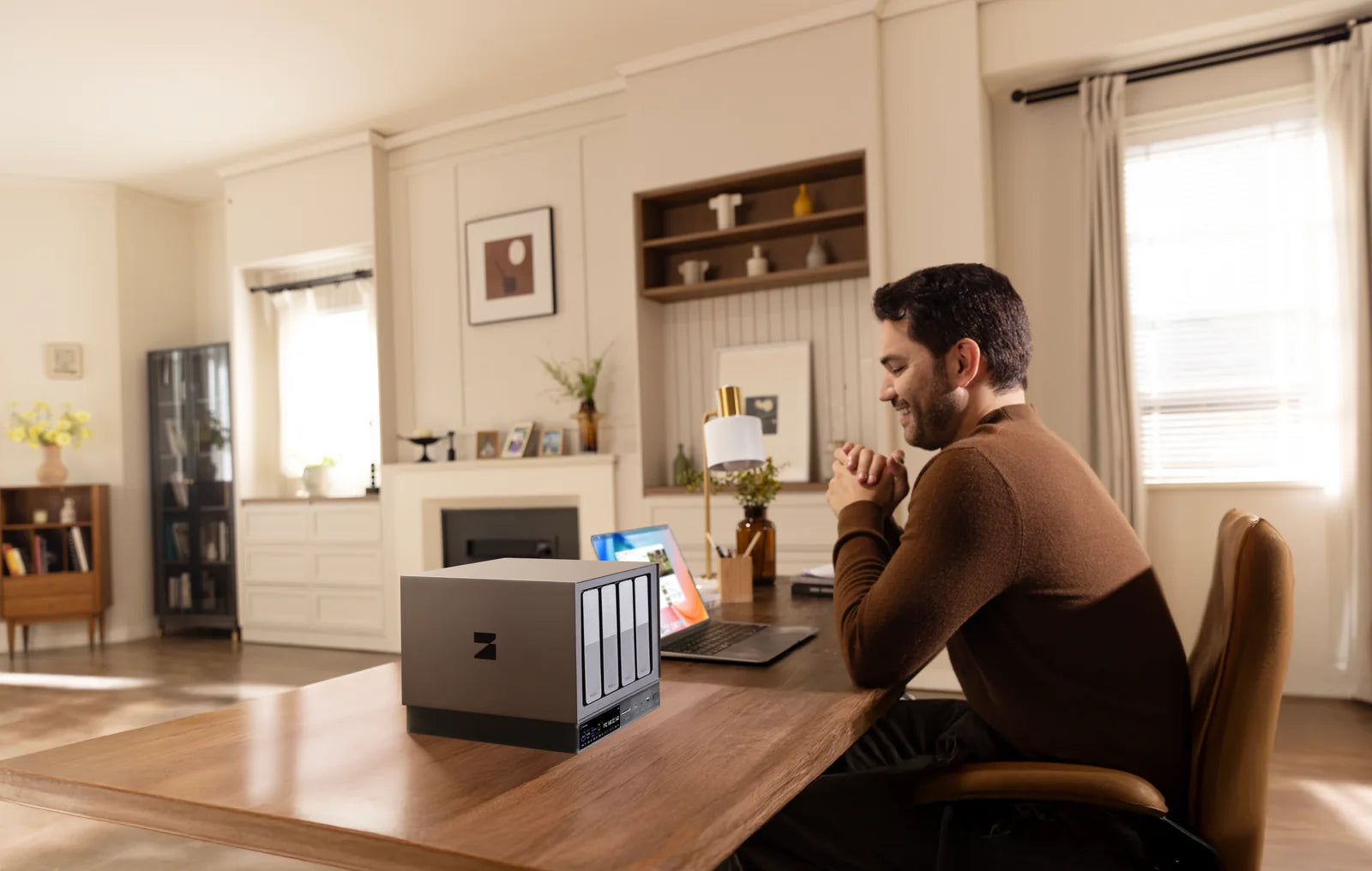
Portainer does not itself require a multi-bay NAS. Choose D4 or D6 only if you also need shared file archives or independent backup destinations. Base drive bays on those files and their growth; application configuration and logs do not by themselves justify a larger enclosure. Check the supported service host and its resources separately.
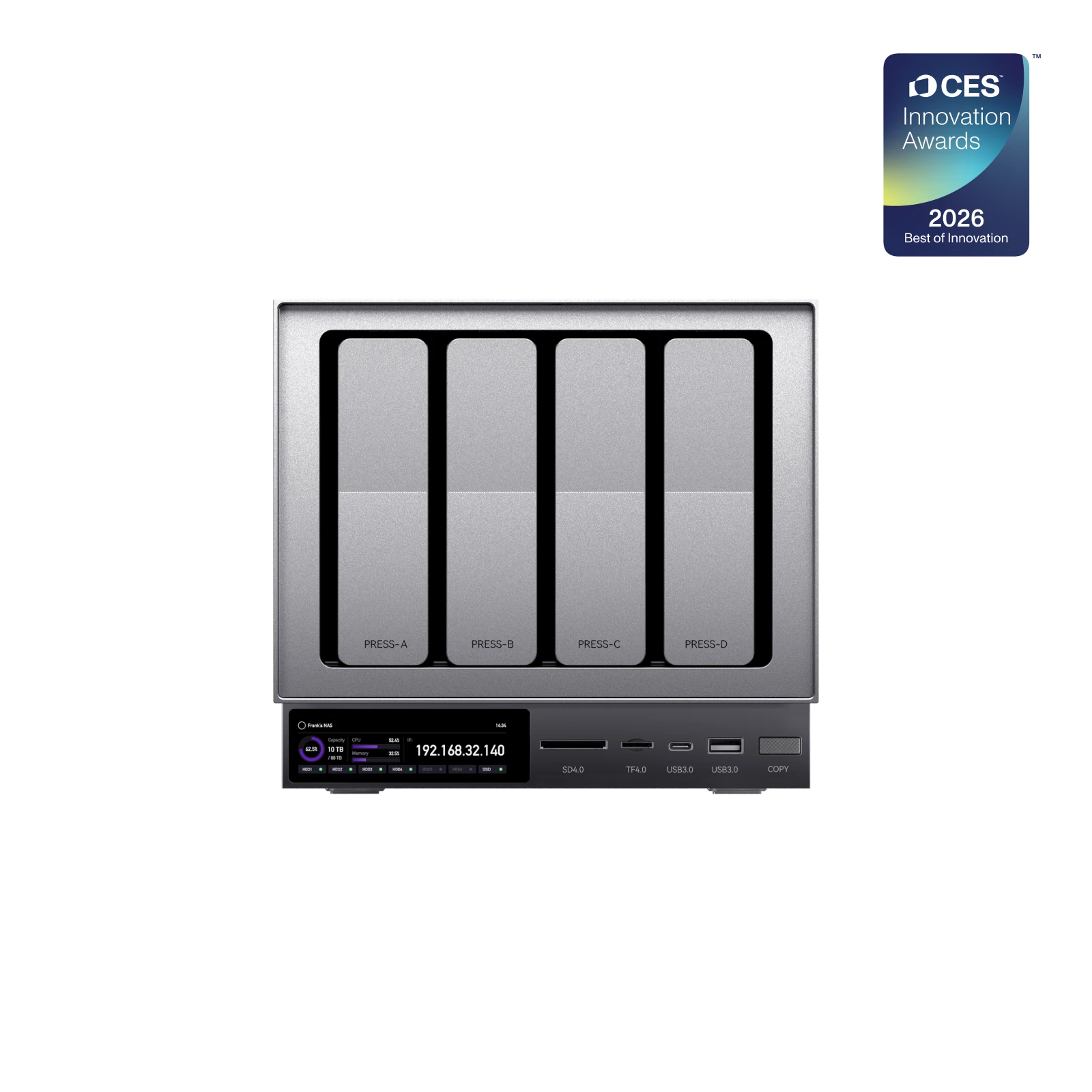
- D4 · 4 SATA bays
- Compare a four-drive layout against the current archive, expected growth and independent recovery copy. See the D4.
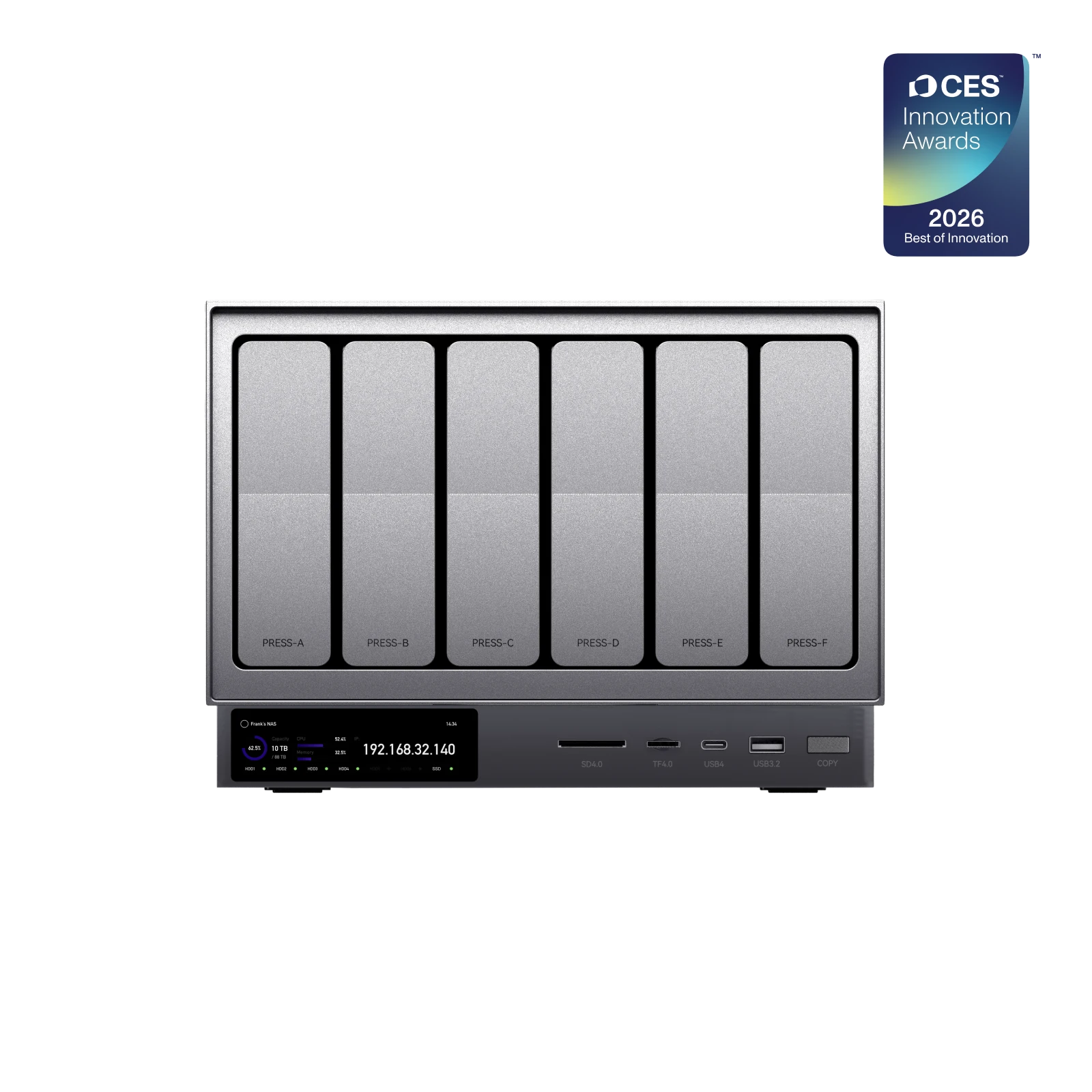
- D6 · 6 SATA bays
- Compare a six-drive layout when more drive-bay capacity or a different growth plan is useful. More bays do not establish a faster application or network. See the D6.
- 8GB / 16GB RAM
- These are separate SKU choices on each product page. Confirm the selected release’s requirements and combined operating load; no application-specific memory recommendation has been device-tested here.
- Complete system cost
- Enclosures are diskless. Allow for compatible drives, independent backup storage and any external application host, paid features or service/API charges required by the task. Current prices and delivery belong on the product page.
Official references
- Official CE installation and management portsDocumentation read 2026-11-18
- Official backup scope and fresh-instance restorationDocumentation read 2026-11-18
- ZettOS Docker Projects
For Home
Plan Useful Home Server Workflows
Read the guide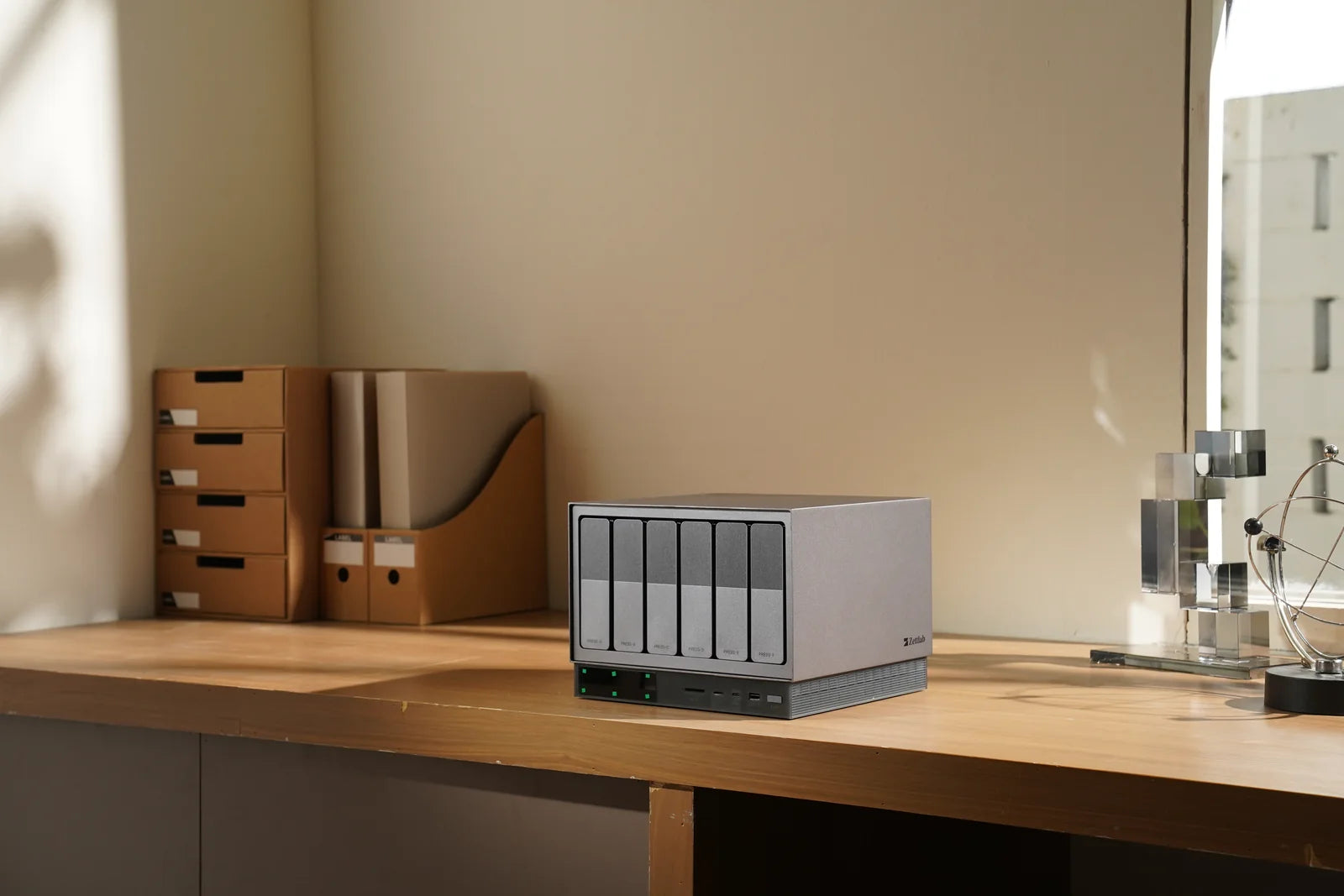
Basics