


What you can do
Find the right app and manage its life on your NAS.
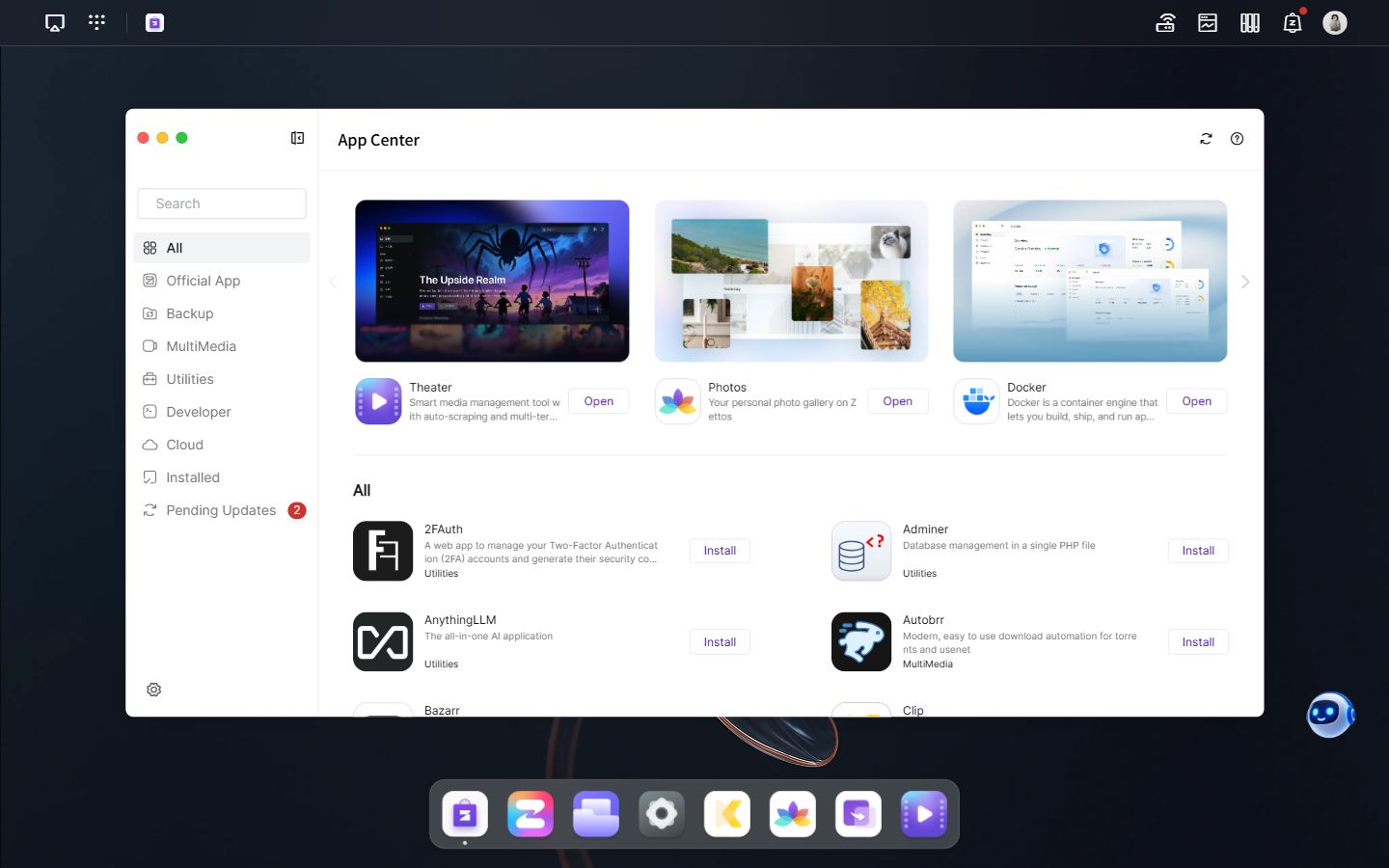
- Browse categories or search by name, then inspect the developer, description, screenshots and memory requirement on an app’s details page.
- Use app status to distinguish items ready to install, already openable, awaiting an update or reporting an error.
- Choose the installation storage pool for third-party app data and configure a default location when appropriate.
- Manage installed apps and update policy from App Center. A verified local ZPK package can also use the documented Local Install flow.
Before you start
- Complete NAS setup, prepare a healthy storage pool and confirm that the network can load the application list and packages.
- Use an administrator account for installations and configuration, with enough free space in the intended storage pool.
- Read the app’s own requirements and preserve important application data before an update, reinstall or removal.
Your first workflow
-
Inspect the application first
Search for the app or browse a category, then open its details. Check what it does, who publishes it and what it needs. The catalog on your particular device is the relevant source for current availability.
-
Choose its data location
Select Install and review the storage location prompt. Choose an available pool with sufficient space. Keep the location clear so you can identify the app’s configuration and data when planning backups.
-
Open and check the app
Wait until installation completes and the status changes to Open, then launch it. Finish any application-specific setup and verify a representative task; installation success alone does not prove the service meets your needs.
-
Maintain it through App Center
Use Installed and Updates to review later changes. Read the update confirmation and schedule around active work, since an app can temporarily stop. Keep App Center-created containers under App Center management even when they also appear in Docker.
Check your first result
The application installs to the intended pool, opens from App Center or the desktop and completes an appropriate test. You know where its important data resides and how future updates will be handled.
Keep these details in mind
- An available listing is not a promise of operation on every NAS model or software release. Check the current details on your own device.
- AppFolder and application data may contain databases, configuration and indexes. Do not casually move or delete them.
- Local packages require a trusted source, compatible version and successful verification. Do not treat a package filename as proof of publisher or trust.
Common questions
Why does installation mention Docker?
Some third-party applications use Docker. Follow the App Center prompt to prepare that dependency, and continue managing the application through App Center.
Will an update interrupt users?
It can temporarily stop the app. Read the confirmation, make sure critical work is complete and preserve important data before proceeding.
What should I check if an installation fails?
Check network access, free space and pool health, package download status and any Docker dependency. Open the app details for its current error rather than repeating the installation blindly.
More detail from Zettlab
ZettOS apps
Resource Monitor in ZettOS
See how your NAS resources are being used.
Read the guide
