


What you can do
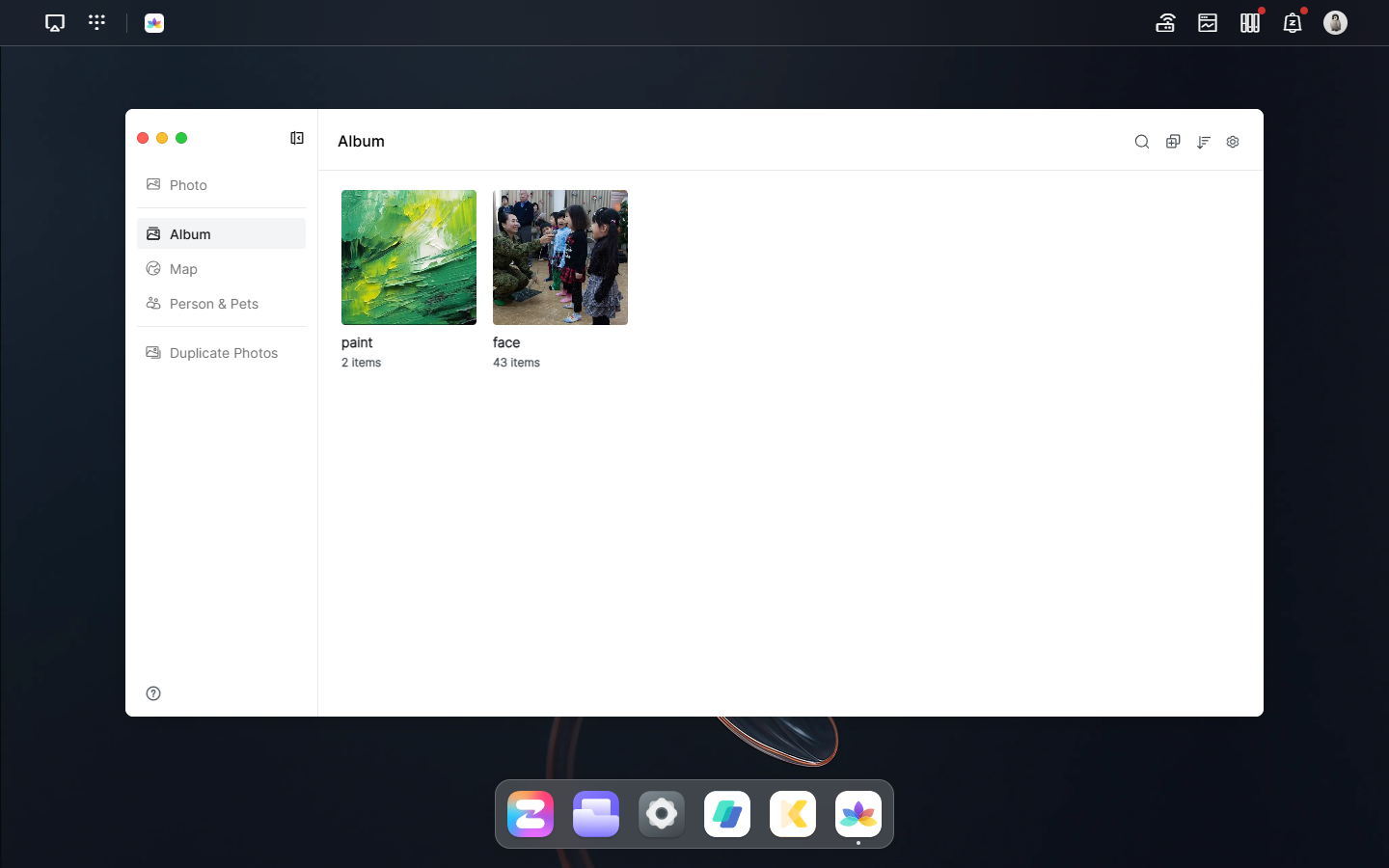
Turn your photo folders into a library you can browse.
- Bring existing NAS folders under management through Photo Paths, or upload local photos into a managed location.
- Browse a reverse-chronological timeline and create albums for events or subjects. Map browsing uses location data already embedded in the original files.
- Enable ZettAI for people and pet grouping and duplicate-photo detection. Review similar-photo groups before choosing what to remove.
- Use the mobile app to back up selected phone photo collections to the NAS. Desktop downloads are available in Photos, while desktop sharing is handled through Files.
Before you start
- Complete initial NAS setup, prepare a storage pool and ensure that the current account has a personal space.
- Check that the account can access the intended photo folders and that enough storage is available for imports.
- For AI organization, ask an administrator to enable ZettAI and include the photo folders in learning scope.
Your first workflow
-
Start with one photo folder
Open Photos and add the folder in Photo Path settings. Save and wait for indexing. If the collection is on a computer or external drive, first copy or upload it to a NAS folder that Photos manages.
-
Confirm the timeline
Find several sample photos and videos in the timeline. Check their capture dates and open a few items. If photos are absent, confirm the destination path, permissions, supported formats and indexing progress before importing more.
-
Build useful browsing views
Create an album for one event and try the available map or People & Pets views. Map placement requires GPS information in the source photo; AI groups require learning and may need time to appear.
-
Add a repeatable import routine
Set up mobile photo backup if needed and verify the NAS copies. The documented phone backup is one-way from phone to NAS. For desktop sharing, open the underlying folder in Files and choose the appropriate share type.
Check your first result
Your sample collection appears in Photos, opens correctly and is stored in a known NAS folder. New imports arrive in a managed path, and any backup routine has been verified on the destination.
Keep these details in mind
- Indexing and thumbnail generation are background work. Large imports or a busy NAS can take longer.
- A missing map entry can simply mean the original has no GPS metadata; timeline dates likewise depend on source information.
- Duplicate detection groups identical or similar images. Similar does not mean disposable: inspect each candidate and keep an independent copy before cleanup.
Common questions
Why don’t my uploaded photos appear?
Confirm that the upload landed inside a Photo Path and that indexing finished. Check the file directly in Files to separate a path problem from a format or damaged-file issue.
Where is the desktop Share action?
The current PC guide places sharing in Files. Locate the folder there, then create an internal or external share. The mobile app has its own sharing actions.
Why is People & Pets empty?
Confirm that ZettAI is enabled, that the photo folders are in scope and that learning has completed. Try a small set of clear photos before expanding the library.
More detail from Zettlab
ZettOS apps
Theater in ZettOS
Browse your video collection through a poster wall and available metadata filters.
Read the guide
