

What you can do
Keep working folders in step and important copies in reach.
- Synchronize a computer folder with a NAS folder through the Zettlab client, or connect another Zettlab NAS for a cross-NAS sync task.
- Create backup tasks either into this NAS or from this NAS to another supported location, including external devices, cloud drives and file services shown in the interface.
- Prepare reusable connections for supported NAS, cloud and protocol destinations, then use them in tasks.
- Review task status, open task details from logs and export filtered log records when troubleshooting needs a record.
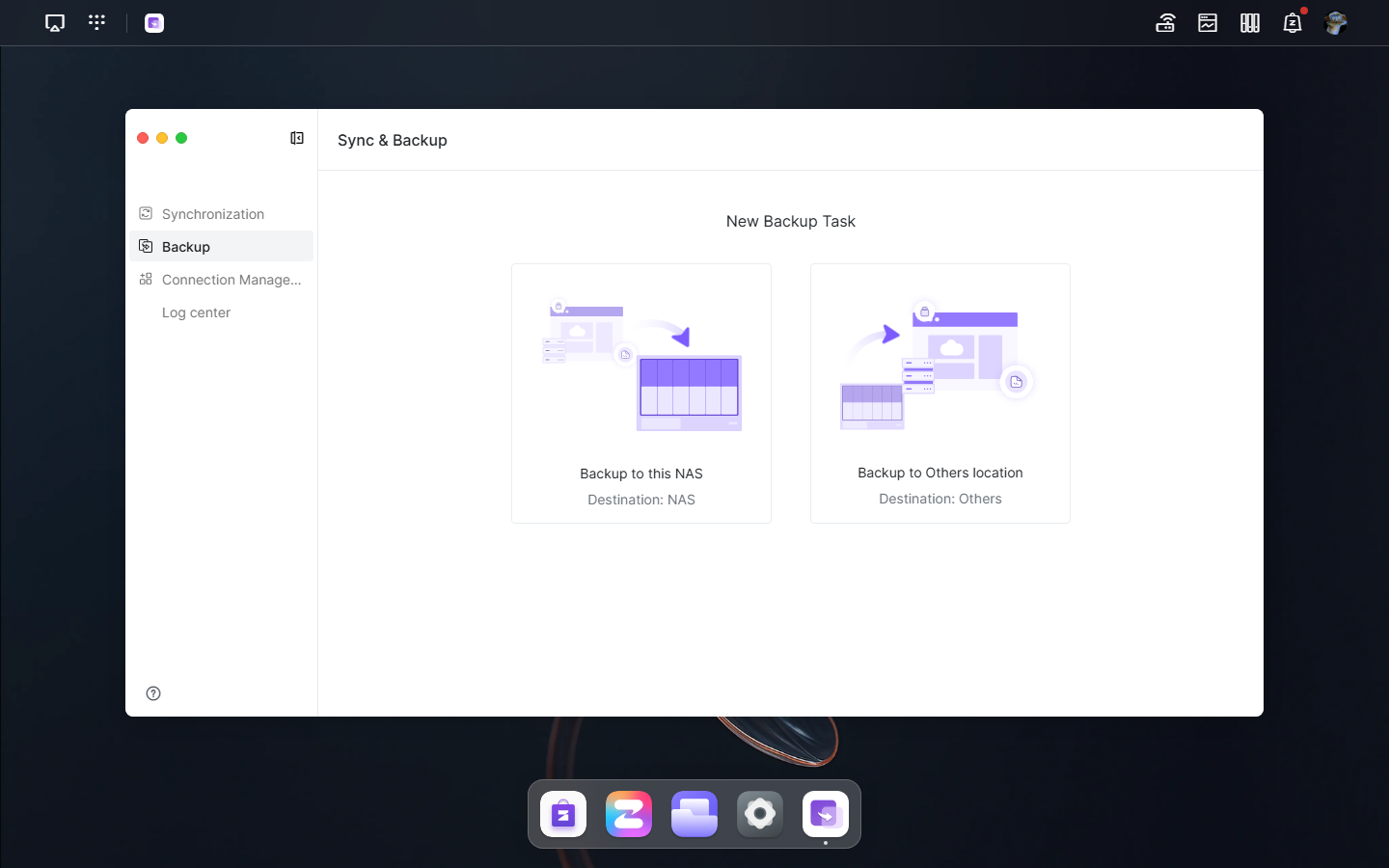
Before you start
- Prepare at least one usable storage pool, sufficient free space and accounts with access to both the source and destination.
- Use the desktop client for Sync this computer. The web interface cannot directly select a computer’s local folders for that task.
- For another Zettlab NAS, install Sync & Backup on the remote NAS and confirm its LAN address or Remote Access ID and folder permissions.
Your first workflow
-
Decide between sync and backup
Use synchronization when two working locations should stay consistent. Use backup when the goal is to keep a copy. Write down which location is authoritative before selecting a one-way or two-way policy.
-
Prepare the destination connection
In Connection Management, choose the supported connection type and complete its authorization or service details. Verify that the target service is enabled and reachable; expired cloud authorization must be repaired before dependent tasks can run.
-
Create a small task
Choose the source and destination carefully, give the task a name that identifies both and review the direction, execution method and filters in the preview. Avoid reusing overlapping folders in competing sync tasks.
-
Inspect the destination and repeat
Run the task and inspect several destination files. Review task details and logs for failures. For a recovery routine, also retrieve a sample into a separate test location before trusting the schedule with important data.
Check your first result
The task completes, the intended destination contains readable sample files and the selected direction behaves as expected. Any scheduled destination is reachable at the scheduled time.
Keep these details in mind
- Synchronization can carry changes and deletions between locations. Keep an independent recovery copy when the data matters.
- Personal-space migration pauses tasks and makes the app unavailable. The current guide requires manually restarting the tasks that should continue after migration.
- Do not assume a task includes version history or a particular retention model unless its current configuration explicitly provides it.
Common questions
Why does Sync this computer ask for a download?
The desktop client is needed to access local computer folders. Install the official client, sign in and create that sync task there.
Why can’t another NAS connect?
Check that the remote NAS has Sync & Backup installed, its address or Remote Access ID is usable and the account can access the selected paths.
What if a task keeps failing?
Check connection health, authorization, permissions and free space, then inspect the task details and filtered logs. Correct the cause before rerunning the full dataset.
More detail from Zettlab
ZettOS apps
Clip in ZettOS
Prepare video edits with supported AI-assisted tools.
Read the guide
